Not so long ago Gmail registration could only be done through invitations from the users who already had a verified Google web account. This rule has been changed, allowing anybody to sign up to Gmail with less restrictions.
Gmail accounts can be created through a user’s Google account if one already exists, or by completing Gmail’s simple registration process.
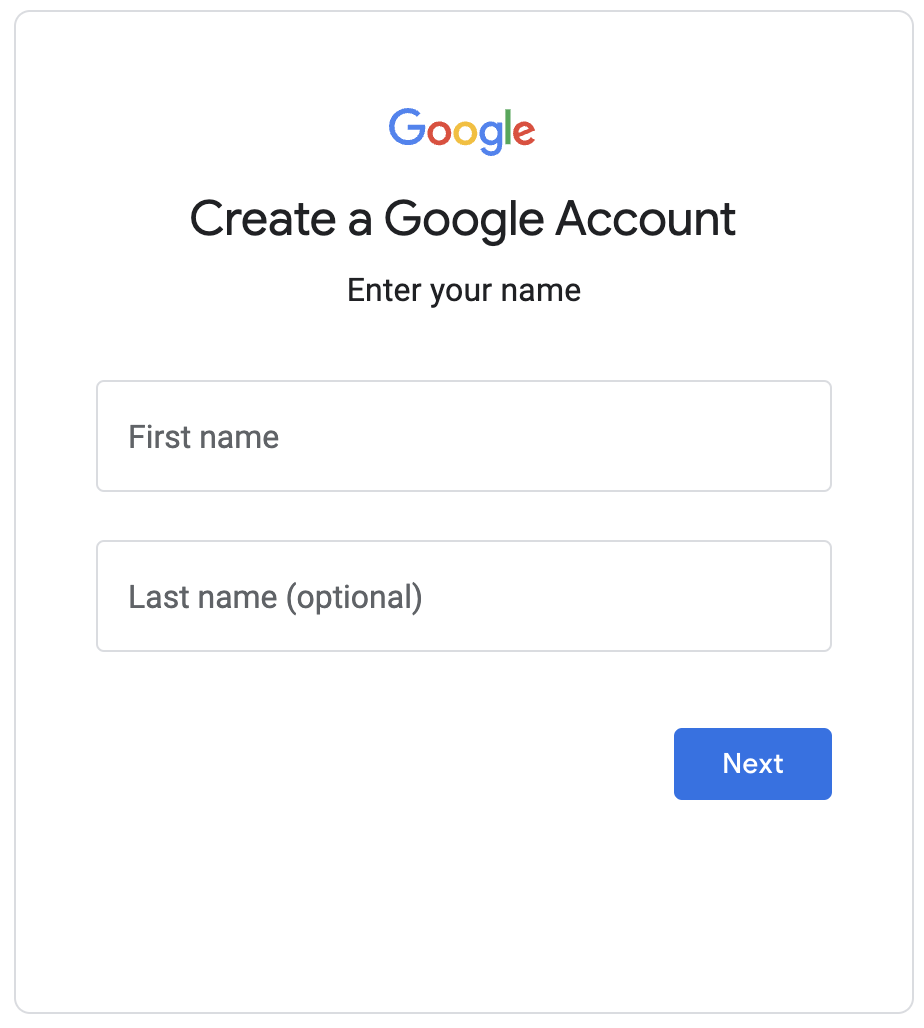
Create a Gmail Account
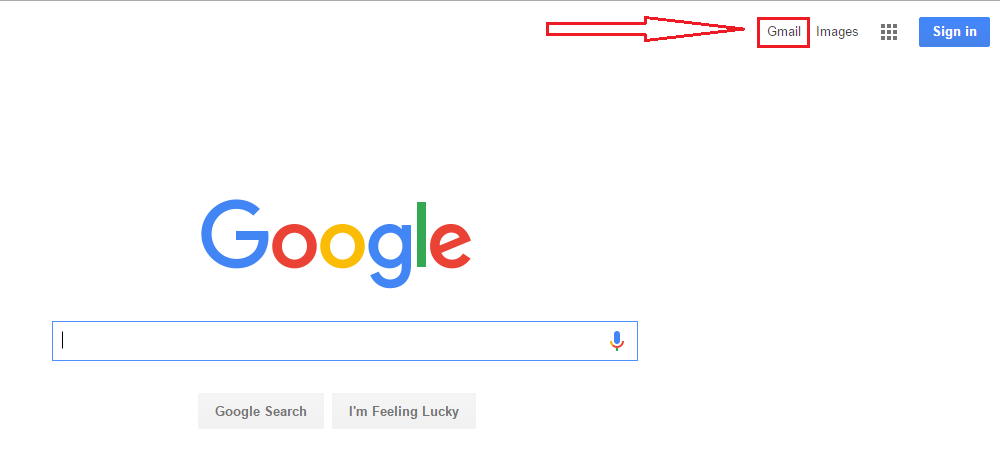
Open your web browser and go to the https://www.google.com/ homepage. Then click on the Gmail option located in the toolbar:
There are two possible scenarios, depending on your account status. If you already have a Google account, simply enter your username and password to access Gmail via your Google account. You can do this by clicking on Login.
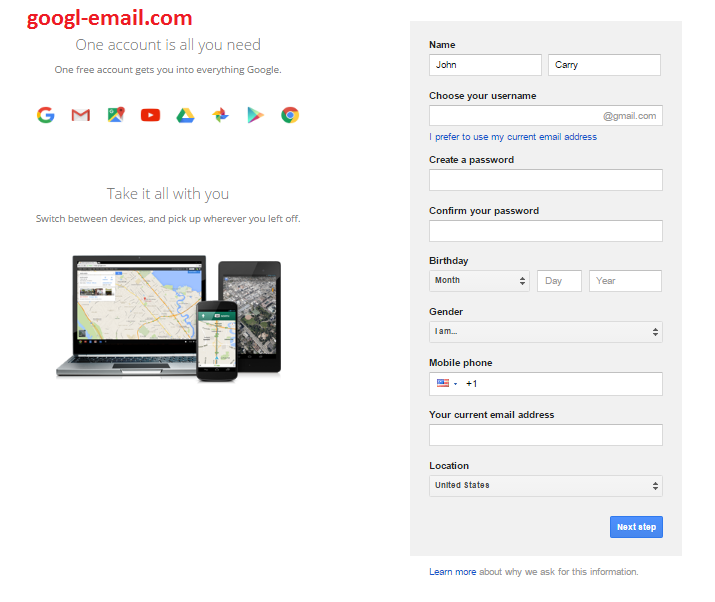
If you do not have a Google account, click on Create an account. An online form will appear asking for your basic information:
Do not hesitate and follow these steps below to create a Gmail account to safely and quickly from its official site.
- After loading the page, then enters the section “Create an account “.
- A new window will be opened, and you need to complete several required blanks, including: First name, Last name and of course the Username you want to use. Remember that the name you could choose depends on the availability on the platform of Gmail (and could be chosen by someone else in the world), so you must click on ” check availability “
- You also need to create and set the password (must be at least 8 characters) for security purposes. Next, you need to select Security Question and then provide the answer. By the same item, it is recommended to establish an alternative mail to retrieve your password or email ID whenever you get troubles logging in.
- Almost finished, now you need to select your country and enter your date of birth .
- Gmail.com will check the captcha (to verify that we are not a robot) and continue
- Let’s accept the terms and conditions set by clicking on ” Create my account “
Finally, select the Check this box to confirm that you have read and accepted all the conditions of use… and click on Next step. In the introductory page of the service, click I am ready to use my account to finalize your registration.
When creating a Gmail account, you also have a Google account, which allows you to access other personalized services such as YouTube, Android, and Google Plus, Google’s social network.
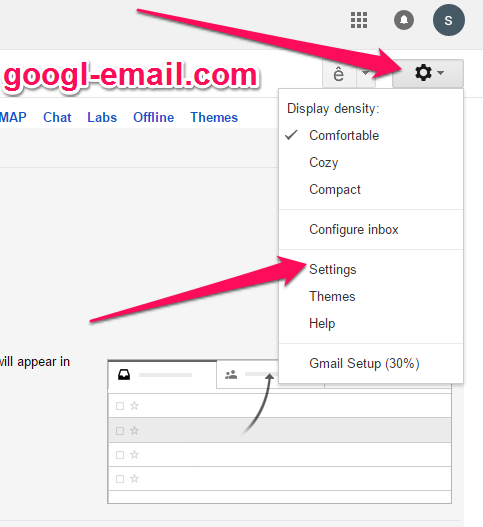
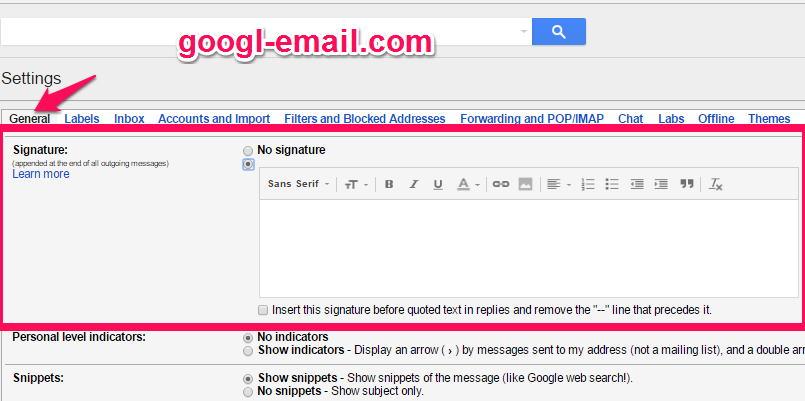
 in the top right . Or visit : https://mail.google.com/mail/u/0/#settings/
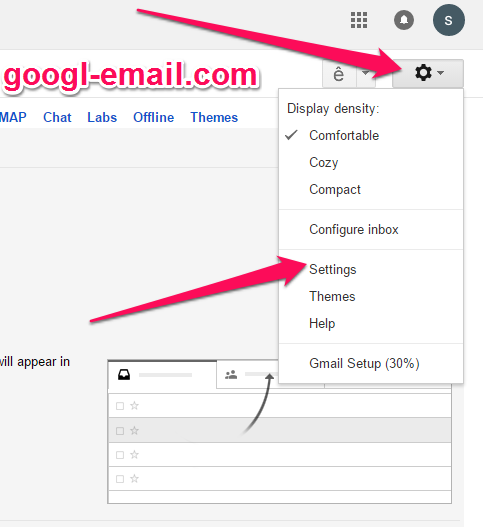
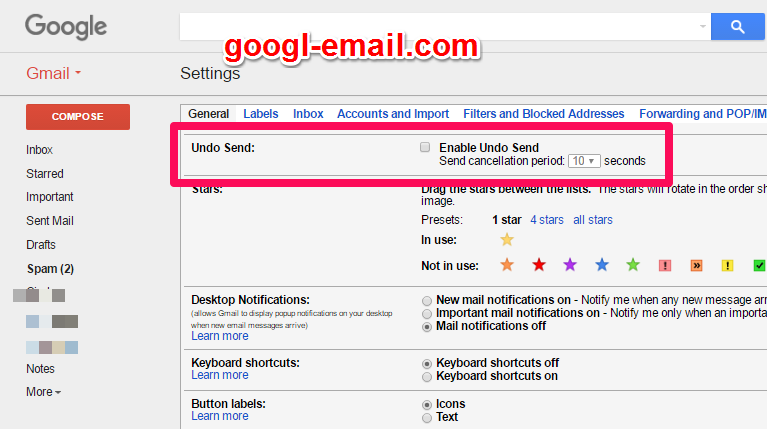
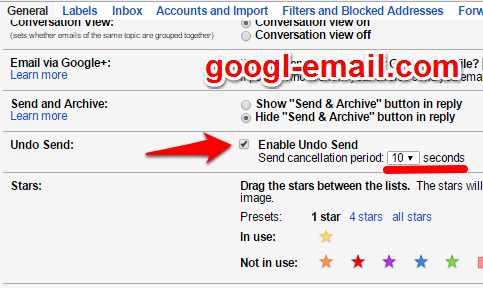
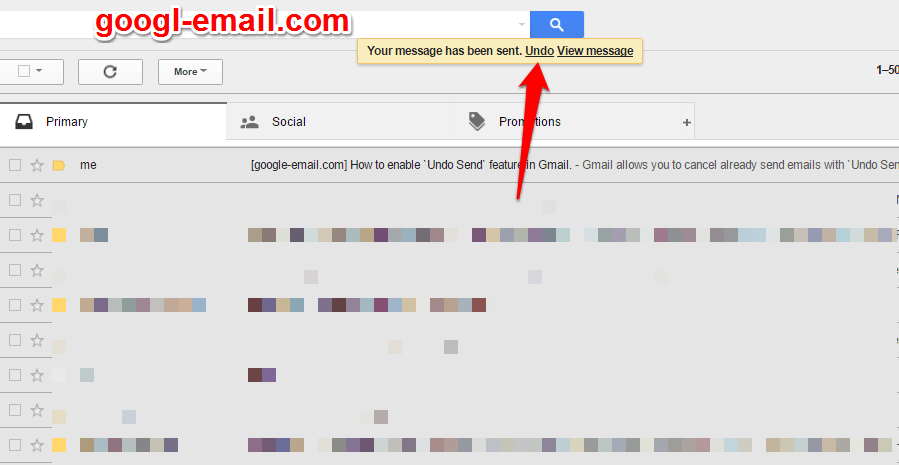
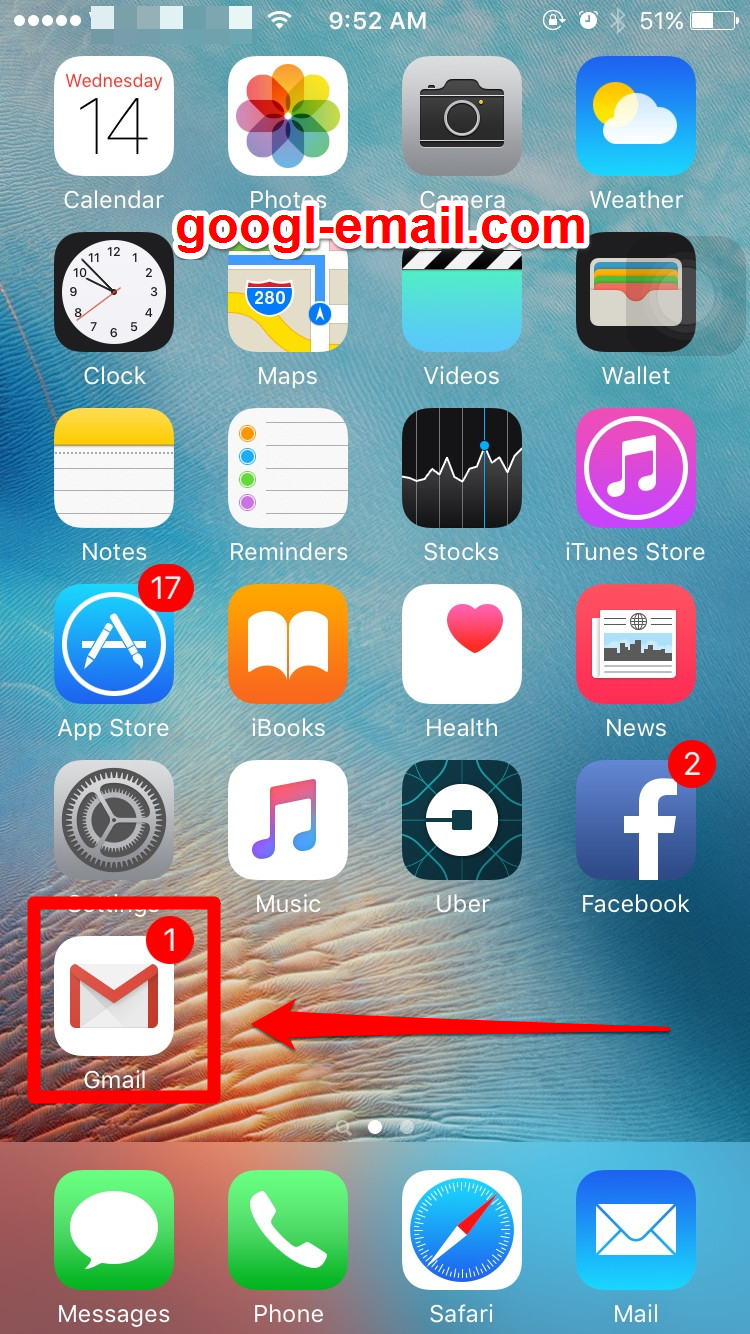
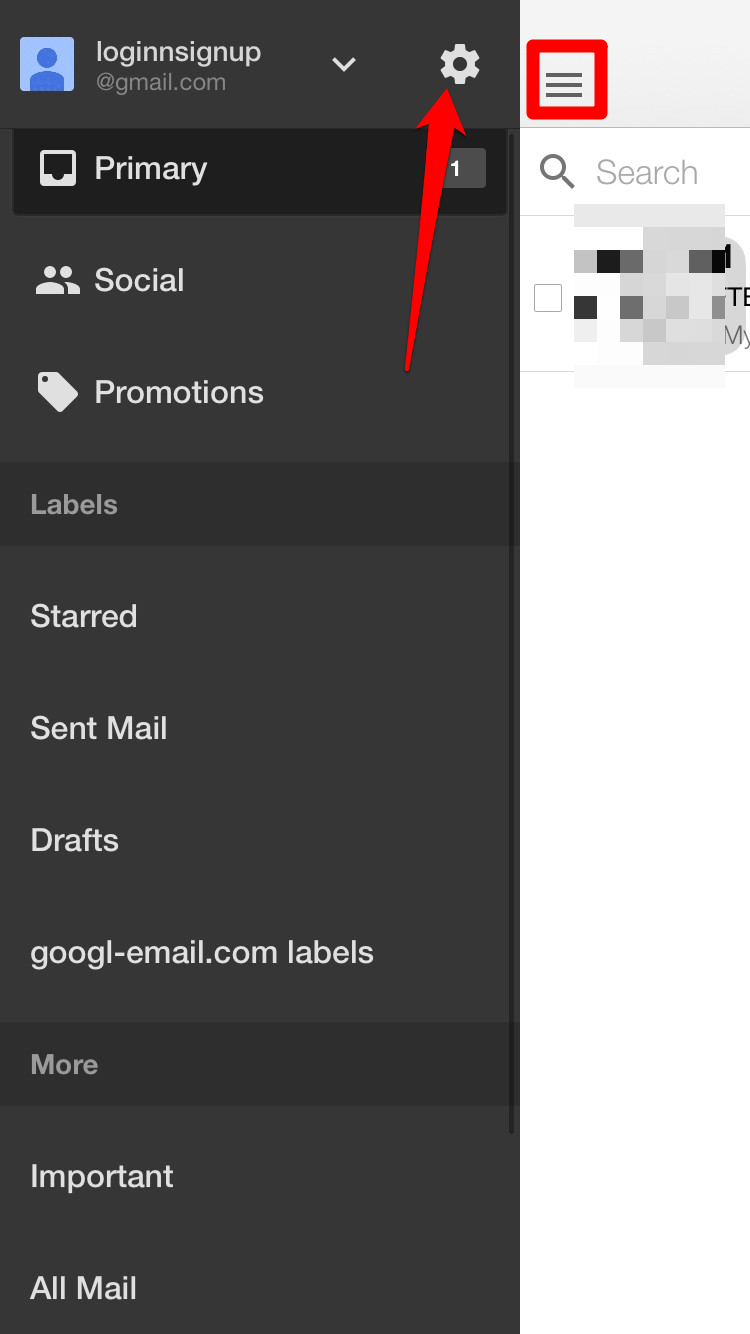
 in the top right , or go to gmail settings page :