How to import Google Contacts
STEP 1 :
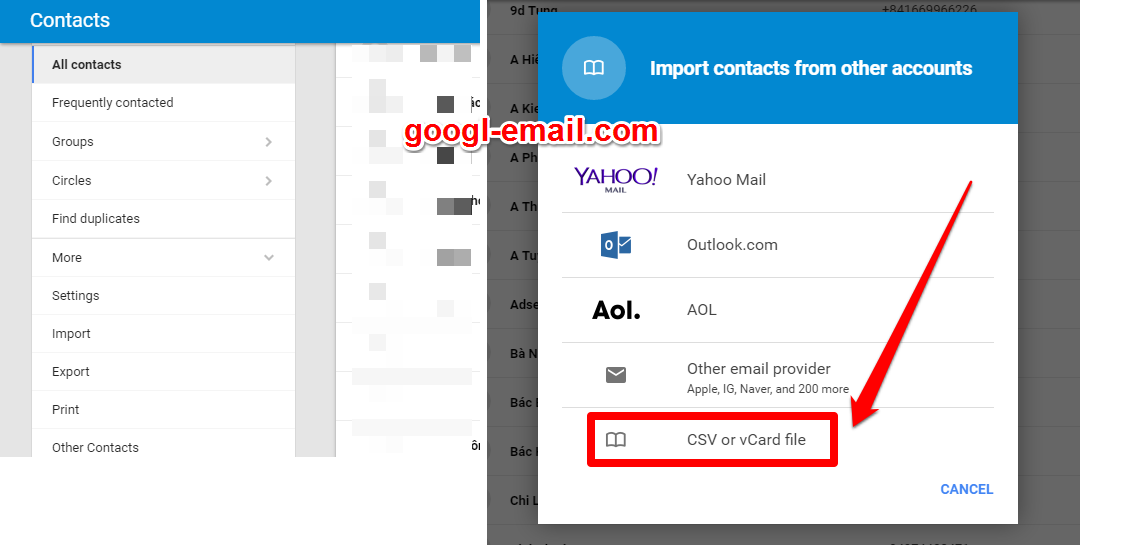
Go to Google Contacts, click `More` → `Import` on the left menu, and click `CSV or vCard file`. And then click `Go to Old Contacts`.
Or you can navigate directly to The old version of Google Contacts page.
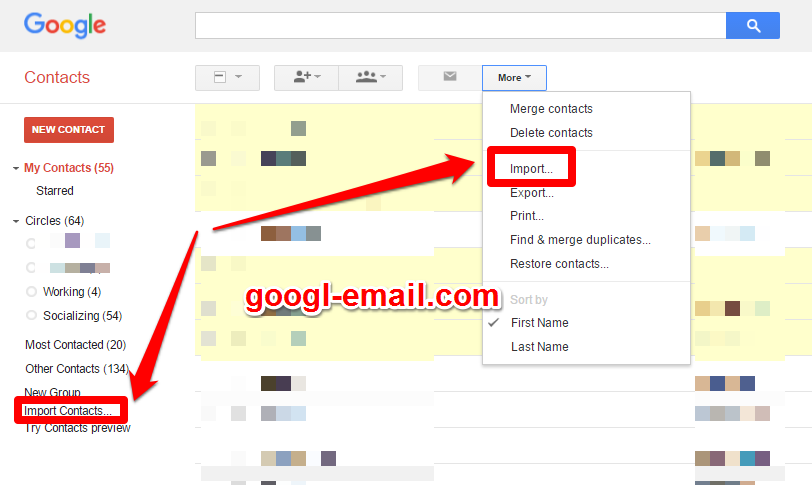
STEP 2 : Click `More` → `Import` on the top menu , or click `Import Contacts` on the left menu.
STEP 3 : Click `Choose file`. Browse for the CSV file you exported or created and click `Open`. ( Learn more : How to export gmail contacts )
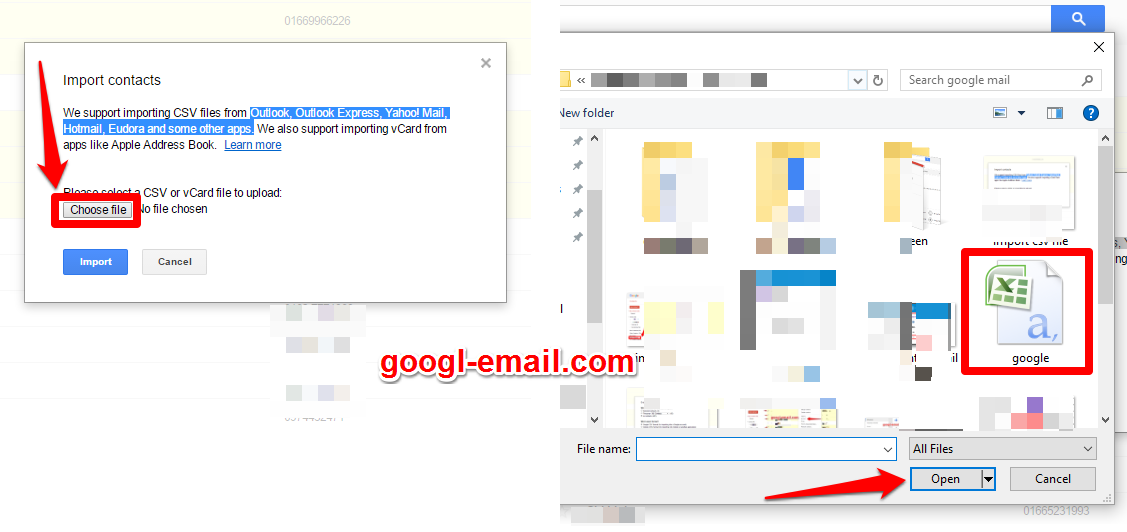
STEP 4 : Click `Import` . The importing gmail process will be completed in few moments, and your contacts will appear listed on your Contacts page.
Importing google contacts problems ?
There are some reasons you may have problems when importing your contacts :
- Importing more than 3000 contacts at once
Resolve → Lets split CSV contacts file into multiple CSV files before importing - You reached the Google Contacts size limits ( Total contacts: 25,000 – Total storage limit : 20 MB – Maximum contact size: 128 KB – Maximum characters per contact field : 1024 )
Resolve → You can Merge duplicate contacts, Stop automatically saving Other Contacts or Delete Other Contacts - Your importing information formatted in other email providers
- Importing already contacts in Google Contacts
- Your import file has non-Latin or ASCII characters.