Gmail for iOS App
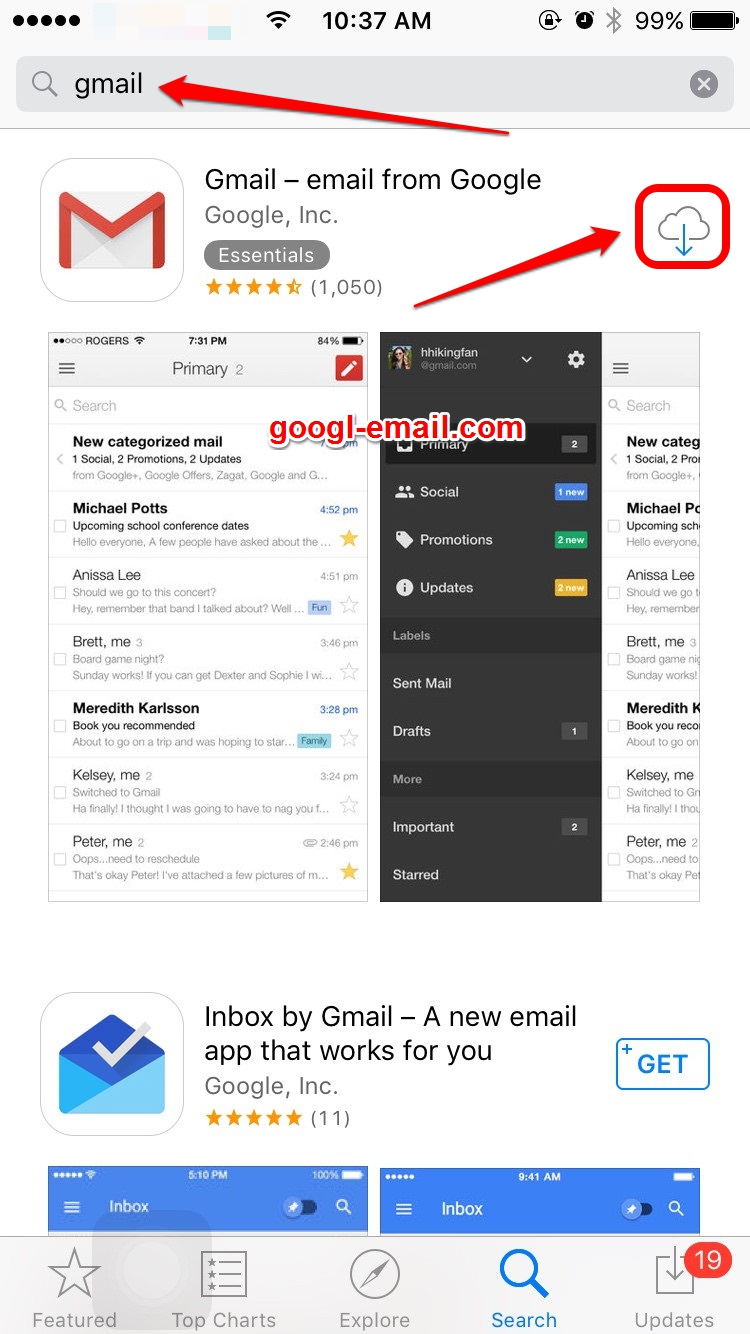
STEP 1 : Open the App Store on your iPhone or iPad. You can install the Gmail app for free on your iOS device by using the App store.
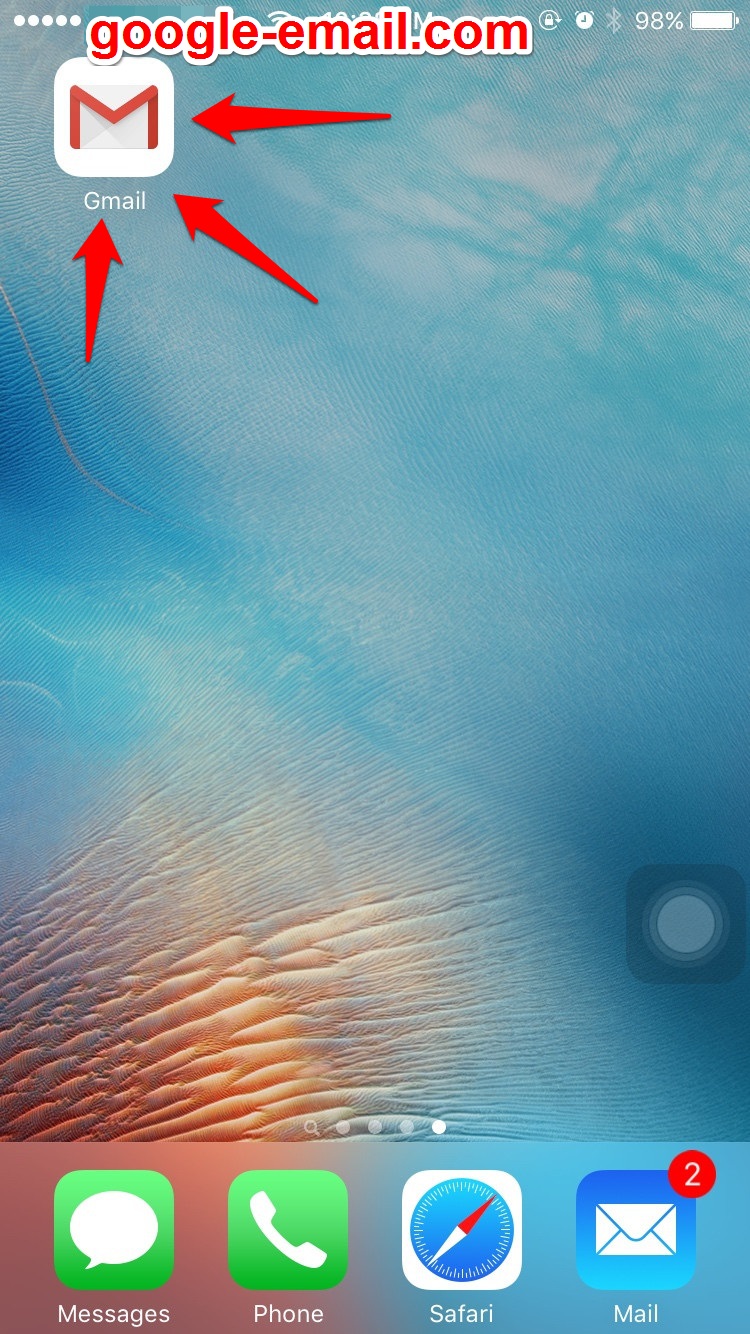
STEP 2 : Tap the Gmail app on the home screen to launch Gmail.
STEP 3 : Enter your Gmail username and password to sign in.
Once your password is registered, you’ll have the opportunity to view a short tour of the Gmail app. If you want the tour, tap “Start Tour.”
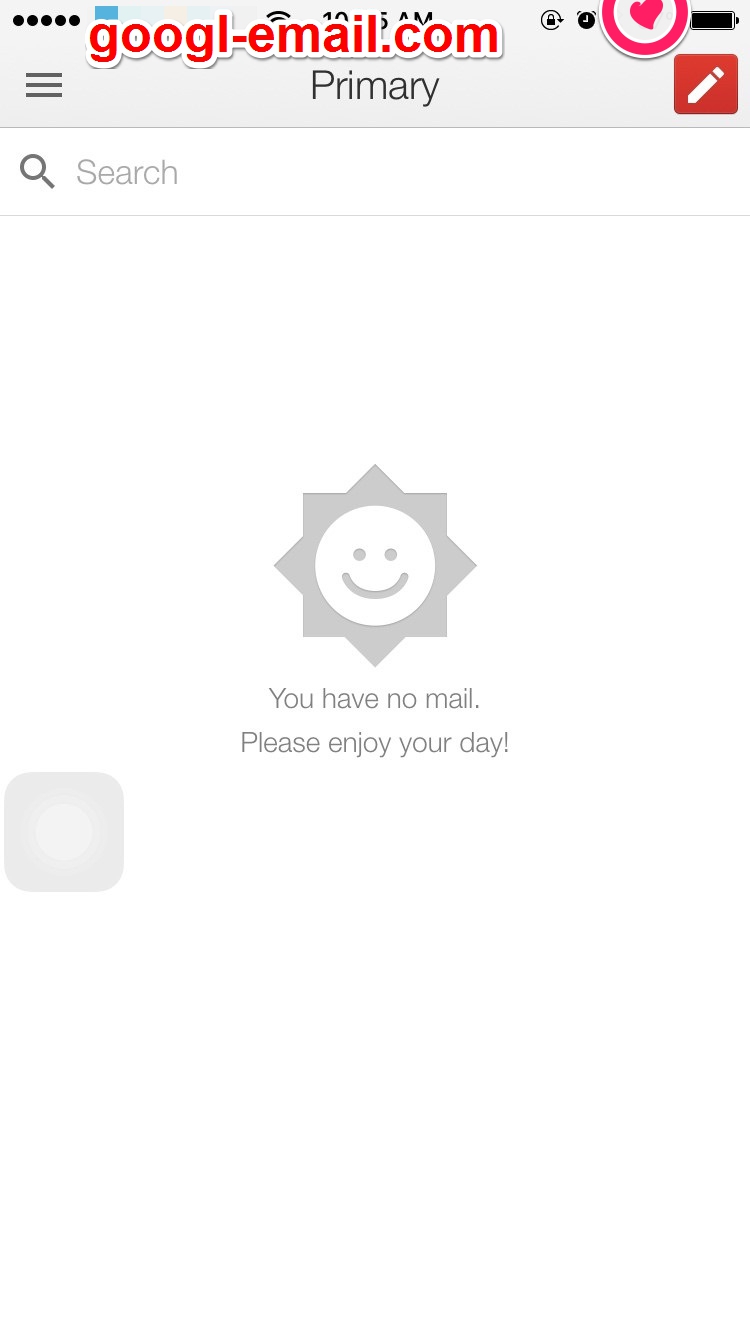
STEP 4 : Tap “Go to inbox” to view your inbox. You now have access to your Gmail account on your iOS device.
Built-In iOS Mail
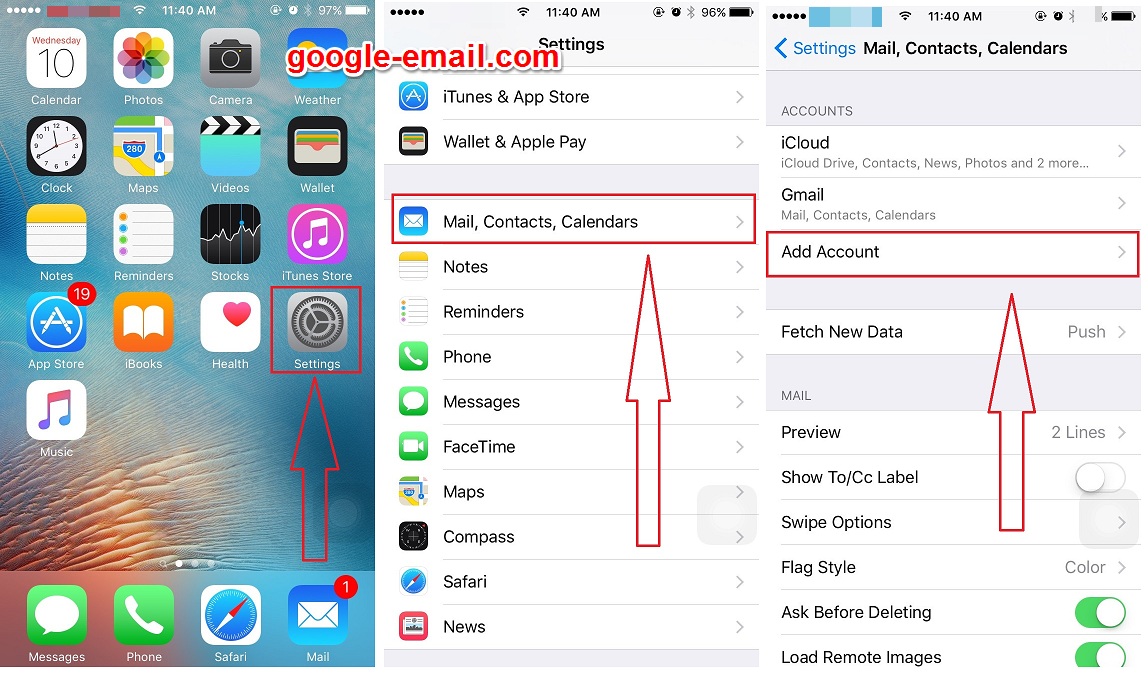
If you want to add your Google account to your iPhone or iPad’s system apps, you’ll want to go to Settings > Mail, Calendar, Contacts.
Under the hood, Apple is using the open standard IMAP, CalDAV, and CardDAV services to handle syncing Google services; unfortunately, Gmail retro-fitted support for IMAP, and it can be quirky at times—especially if you like Gmail’s labeling system.
If you want to use the built-in iOS Mail app and its unified inbox, however, and you don’t have a paid account, it’s your only option.
- Launch the Settings app from your Home screen.
- Tap on Mail, Contacts, Calendars
- Tap on Add Account.
- Tap on Gmail.
- Enter your login information for your Google account.
- Tap on Allow when prompted with the “iOS would like to…” screen.
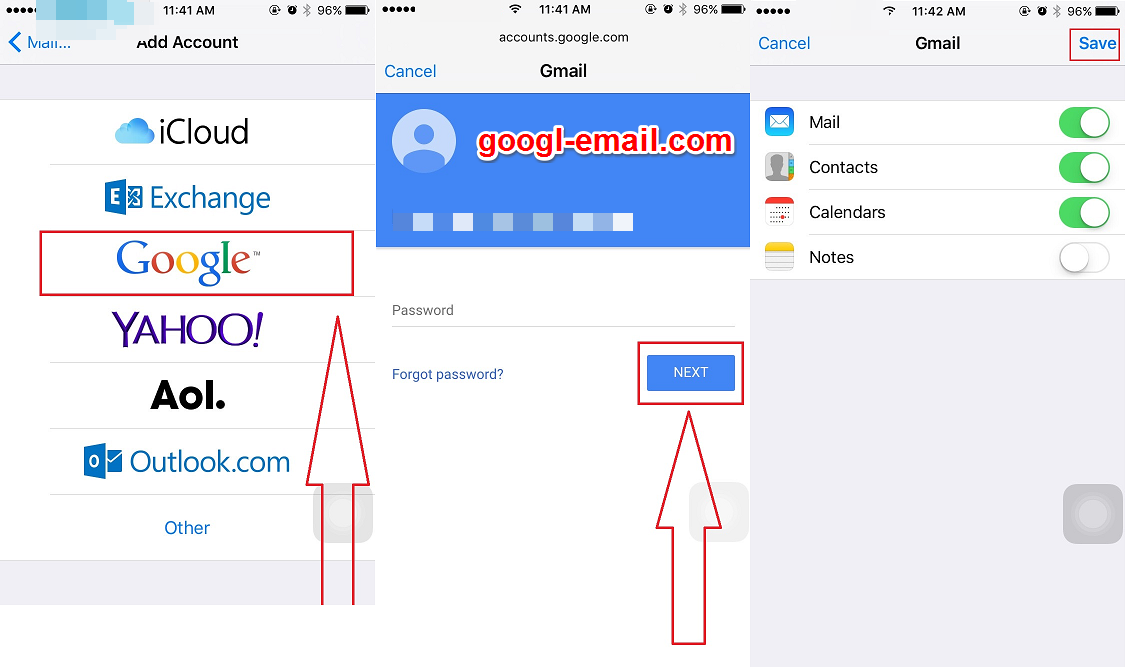
- Tap on the Gmail button.
- Under the account heading you can choose which services you’d like to sync: Mail, Contacts, Calendars, or Notes by moving the corresponding slider to the right.
- Tap on Save.