Skip to content

googlemailguide.com

Gmail Email : Get started ! – Google Mail

  • Home
  • About Us
  • Contact Us
  • Privacy Policy
  • Terms

Tag: Gmail app

Sign in to Gmail – Gmail iPhone/iPad app

November 5, 2026November 5, 2026 admin0 comment

Gmail for iOS App

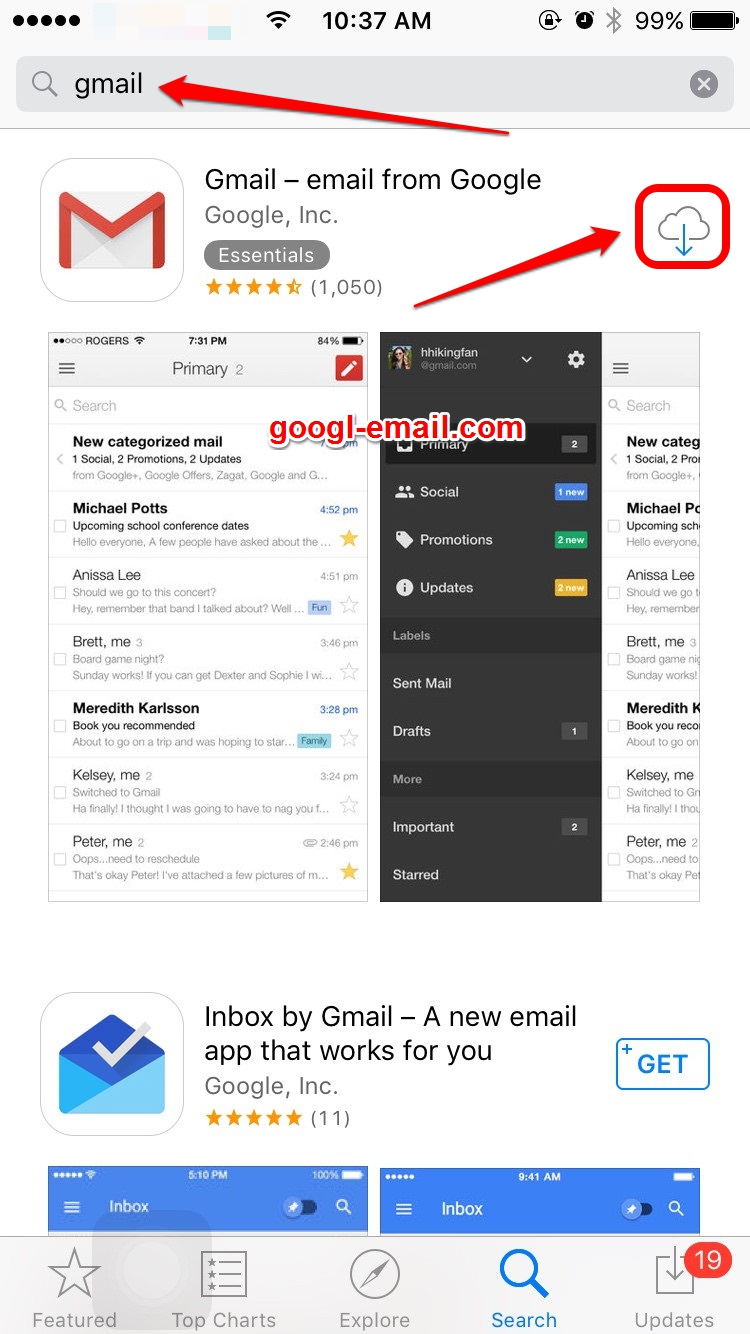
STEP 1 : Open the App Store on your iPhone or iPad. You can install the Gmail app for free on your iOS device by using the App store.
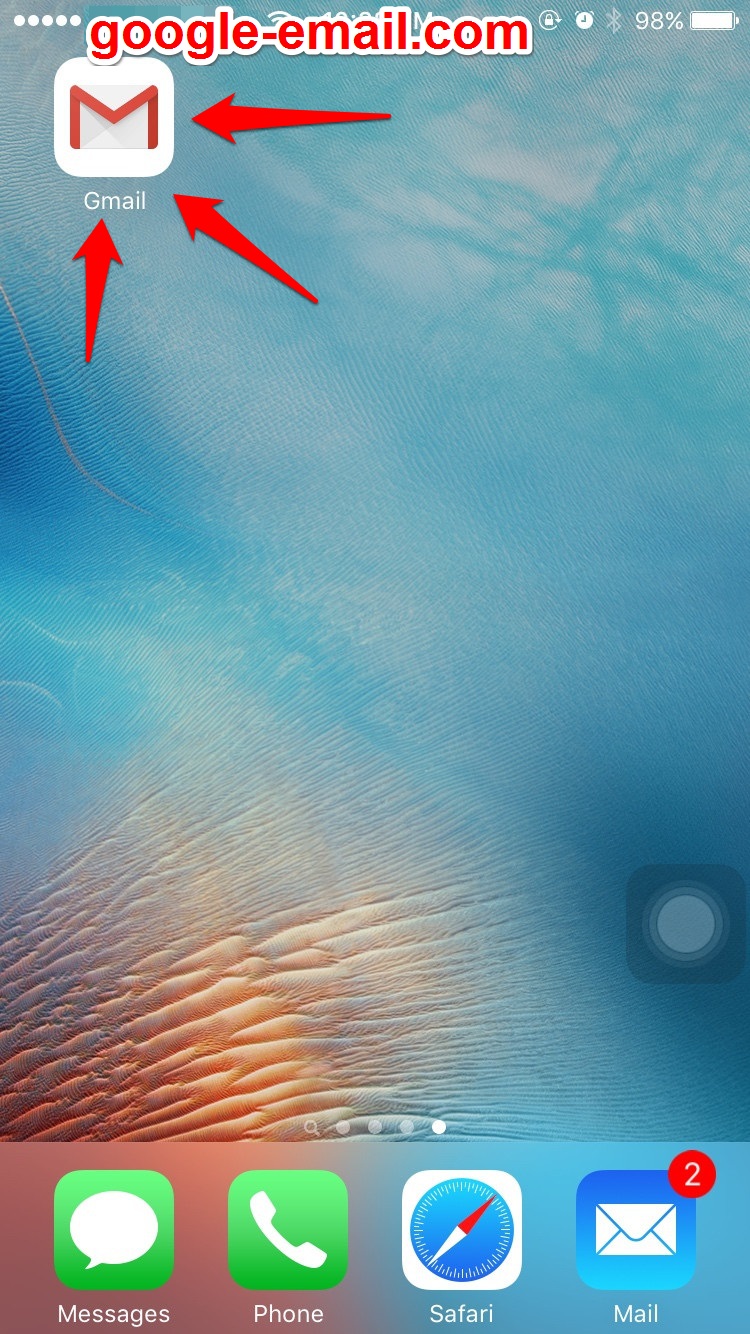
STEP 2 : Tap the Gmail app on the home screen to launch Gmail.
STEP 3 : Enter your Gmail username and password to sign in.

Once your password is registered, you’ll have the opportunity to view a short tour of the Gmail app. If you want the tour, tap “Start Tour.”

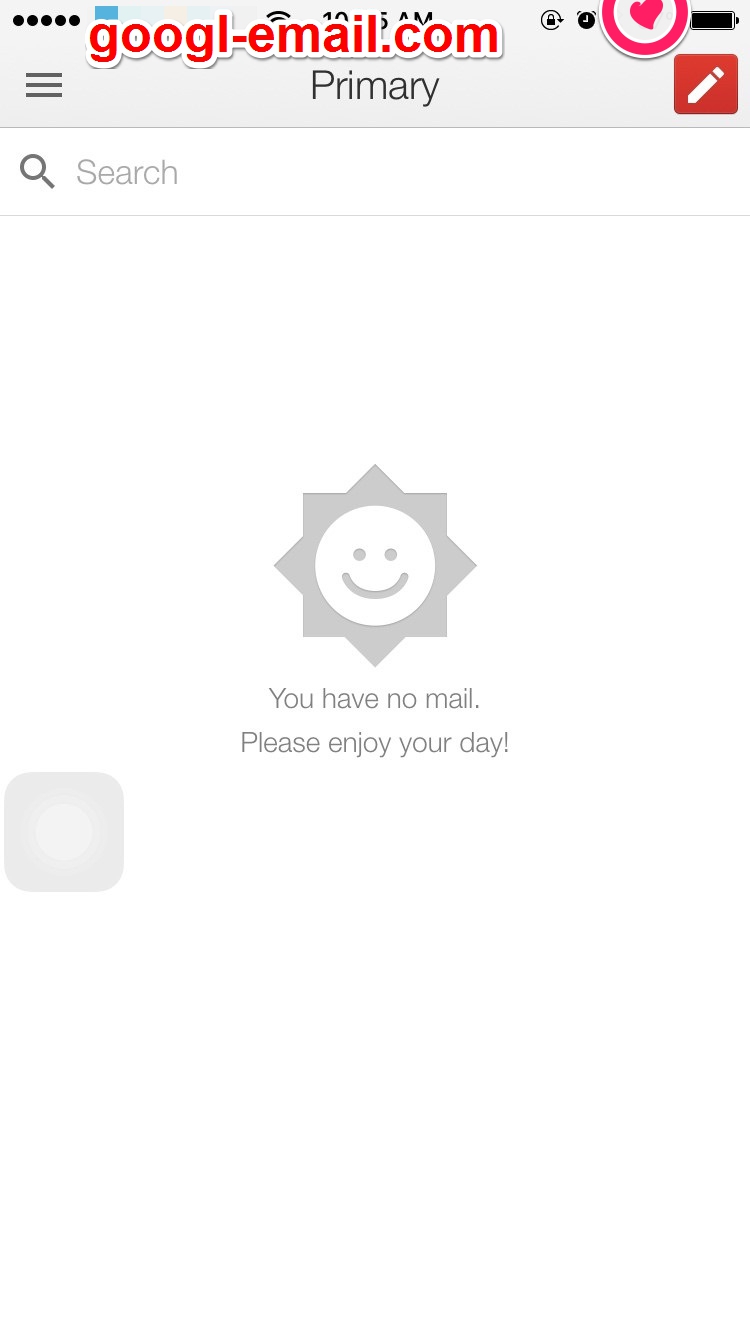
STEP 4 : Tap “Go to inbox” to view your inbox. You now have access to your Gmail account on your iOS device.
Built-In iOS Mail

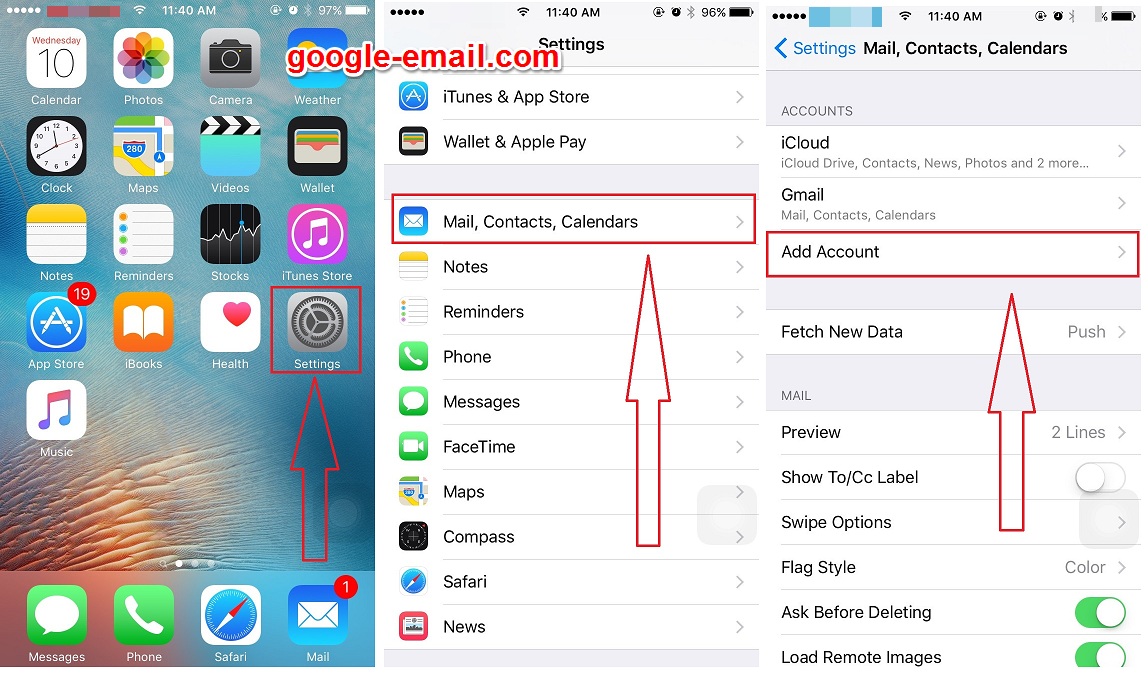
If you want to add your Google account to your iPhone or iPad’s system apps, you’ll want to go to Settings > Mail, Calendar, Contacts.

Under the hood, Apple is using the open standard IMAP, CalDAV, and CardDAV services to handle syncing Google services; unfortunately, Gmail retro-fitted support for IMAP, and it can be quirky at times—especially if you like Gmail’s labeling system.

If you want to use the built-in iOS Mail app and its unified inbox, however, and you don’t have a paid account, it’s your only option.

  1. Launch the Settings app from your Home screen.
  2. Tap on Mail, Contacts, Calendars
  3. Tap on Add Account.
  4. Tap on Gmail.
  5. Enter your login information for your Google account.
  6. Tap on Allow when prompted with the “iOS would like to…” screen.
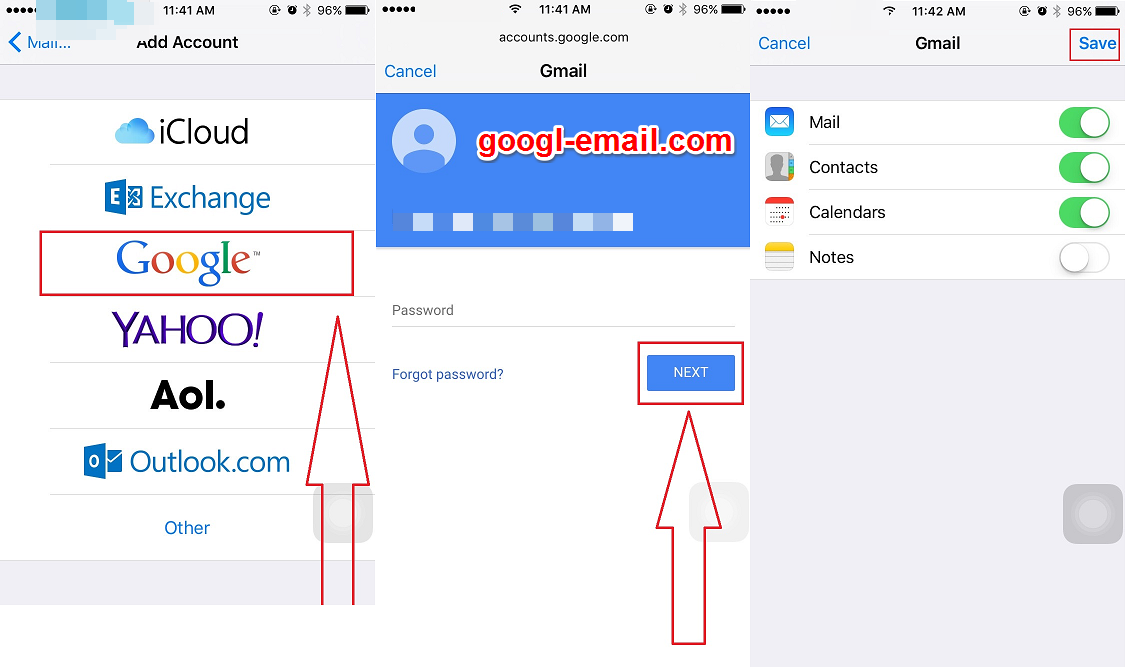
  7. Tap on the Gmail button.
  8. Under the account heading you can choose which services you’d like to sync: Mail, Contacts, Calendars, or Notes by moving the corresponding slider to the right.
  9. Tap on Save.


Google Mail, Sign in to Gmailgmail, Gmail app, google account, google mail guide, ipad, iphone

Sign in to Gmail – Gmail Android App

November 5, 2026 admin0 comment

If your Android already has Gmail app, login will be quick and easy.

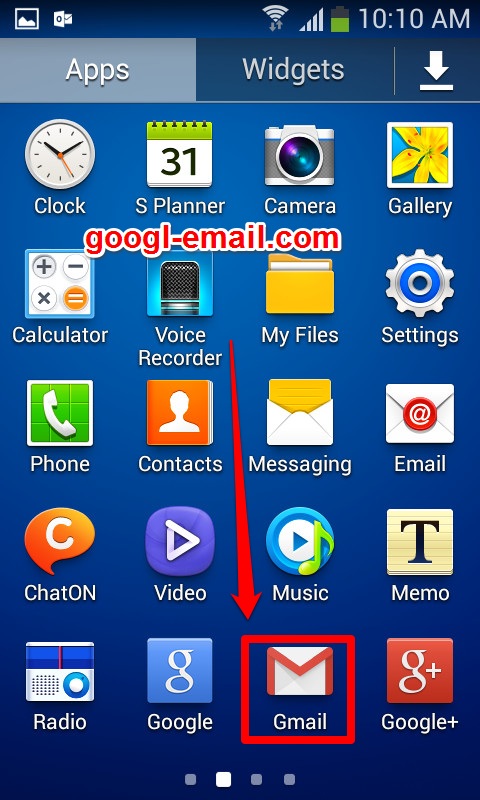
STEP 1: Tap the “Gmail” icon to launch Gmail.

    • If the Google account associated with your Android is the one used for Gmail, you could launch the app and reach your inbox without any further actions.
    • To add a Gmail address that isn’t yet on your phone, apply the similar procedure.

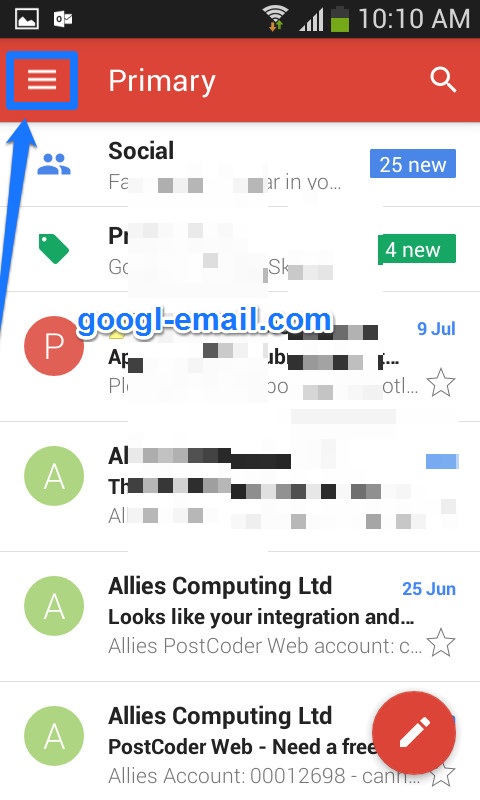
STEP 2: Open the ≡ menu, then select “Settings”.

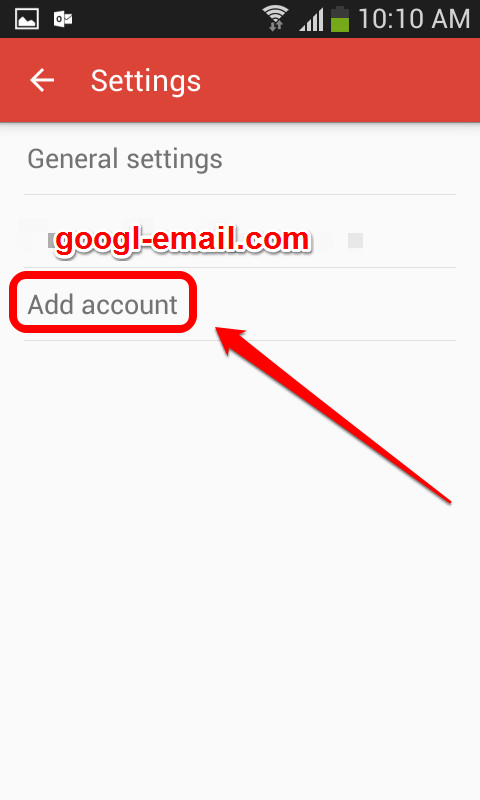
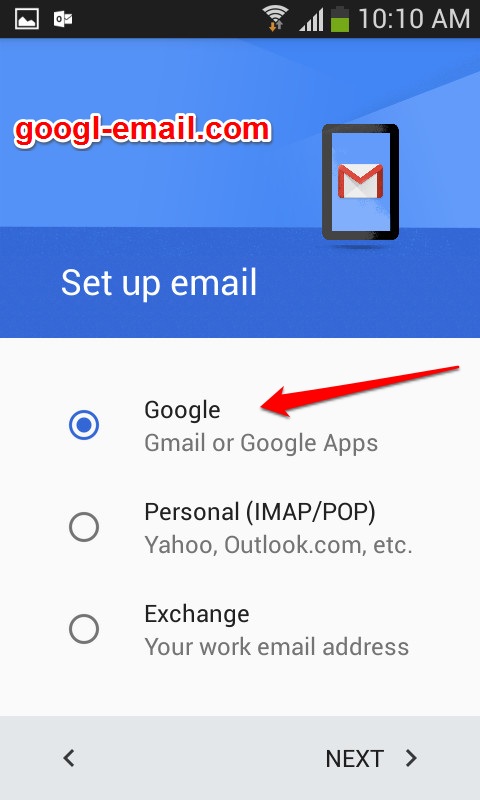
STEP 3: Tap “Add Account”. The “Set up email” screen will appear.

STEP 4 :  Select “Google” and then tap “Next”.

STEP 5: Enter your gmail username,password and then tap “Next”.

You’ll notice a “Forgot password” link right under the password blank. If you don’t remember your password, tap that link and follow its prompts.


Google Mail, Sign in to GmailGmail app, gmail username, password, Sign in to Gmail

Top Posts & Pages

  • Gmail Sign In
  • Google Mail
  • Google Mail vs. Gmail

Archives

  • November 2026
  • October 2026
  • February 2026

Categories

  • Gmail Account Management
  • Google Mail
  • Sign in to Gmail

Subscribe to Blog via Email

Enter your email address to subscribe to this blog and receive notifications of new posts by email.

Join 1 other subscriber

Blog Stats

  • 816 hits
  • Home
  • About Us
  • Contact Us
  • Privacy Policy
  • Terms
Copyright © All Rights Reserved. This is not an official site, we are only helping with our tutorials to access mail servers. We are not affiliated with or sponsored by Google Inc.
Powered by WordPress | Blue Planet by Nilambar
Go to top