Skip to content
googlemailguide.com
Gmail Email : Get started ! - Google Mail
Homepage / Sign in to Gmail

Category: Sign in to Gmail

Gmail Sign Up

Not so long ago Gmail registration could only be done through invitations from the users who already had a verified Google web account. This rule has been changed, allowing anybody to sign up to Gmail with less restrictions.

Gmail accounts can be created through a user’s Google account if one already exists, or by completing Gmail’s simple registration process.
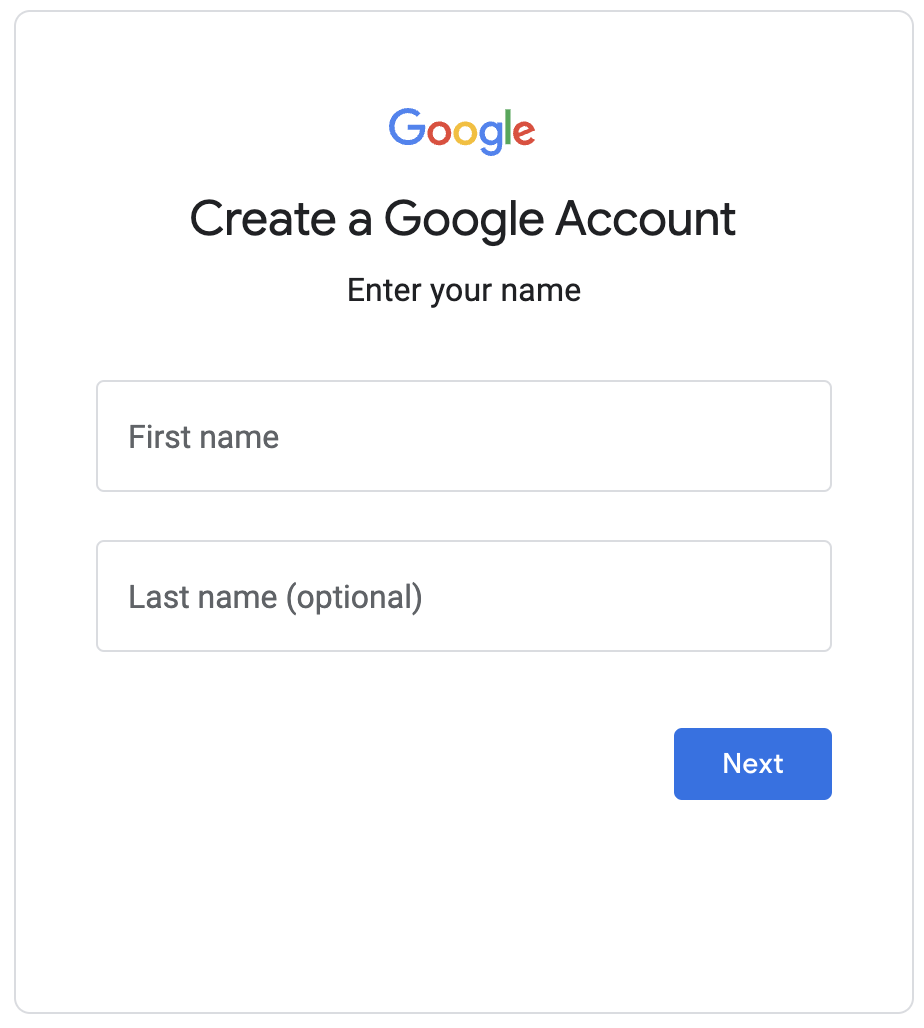
Create a Gmail Account

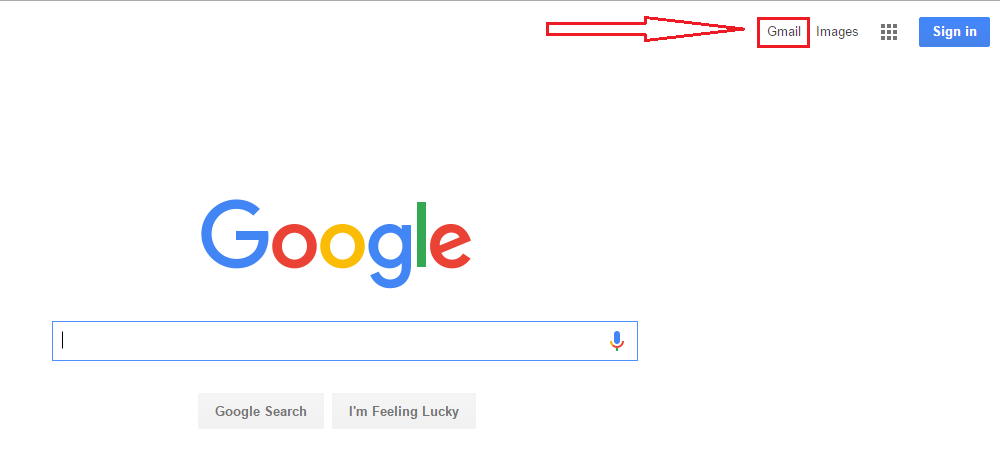
Open your web browser and go to the https://www.google.com/ homepage. Then click on the Gmail option located in the toolbar:
 

There are  two possible scenarios, depending on your account status. If you already have a Google account, simply enter your username and password to access Gmail via your Google account. You can do this by clicking on Login.

If you do not have a Google account, click on Create an account. An online form will appear asking for your basic information:
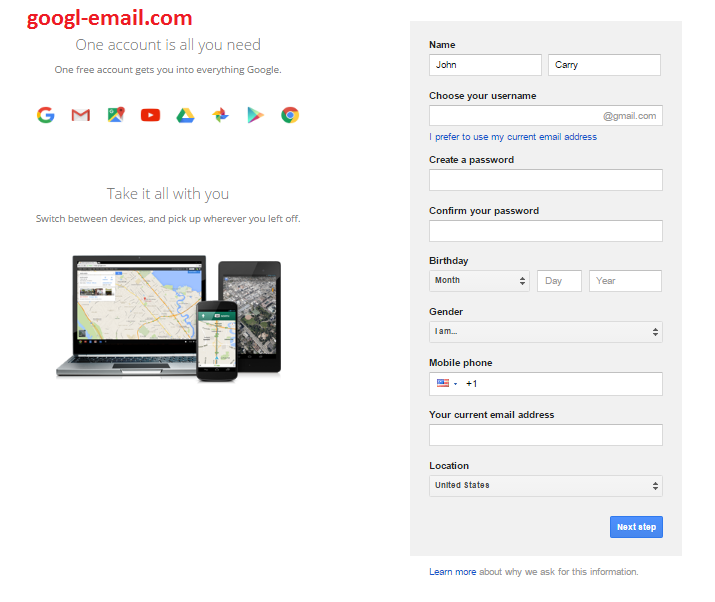
 

Do not hesitate and follow these steps below to create a Gmail account to safely and quickly from its official site.

  1. After loading the page, then enters the section “Create an account “.
  2. A new window will be opened, and you need to complete several required blanks, including: First name, Last name and of course the Username you want to use. Remember that the name you could choose depends on the availability on the platform of Gmail (and could be chosen by someone else in the world), so you must click on ” check availability “
  3. You also need to create and set the password (must be at least 8 characters) for security purposes. Next, you need to select Security Question and then provide the  answer. By the same item, it is recommended to establish an alternative mail to retrieve your password or email ID whenever you get troubles logging in.
  4. Almost finished, now you need to select your country and enter your date of birth .
  5. Gmail.com will check the captcha (to verify that we are not a robot) and continue
  6. Let’s accept the terms and conditions set by clicking on ” Create my account “

Finally, select the Check this box to confirm that you have read and accepted all the conditions of use… and click on Next step. In the introductory page of the service, click I am ready to use my account to finalize your registration.


When creating a Gmail account, you also have a Google account, which allows you to access other personalized services such as YouTube, Android, and Google Plus, Google’s social network.

Sign in to Gmail – Gmail iPhone/iPad app

Gmail for iOS App

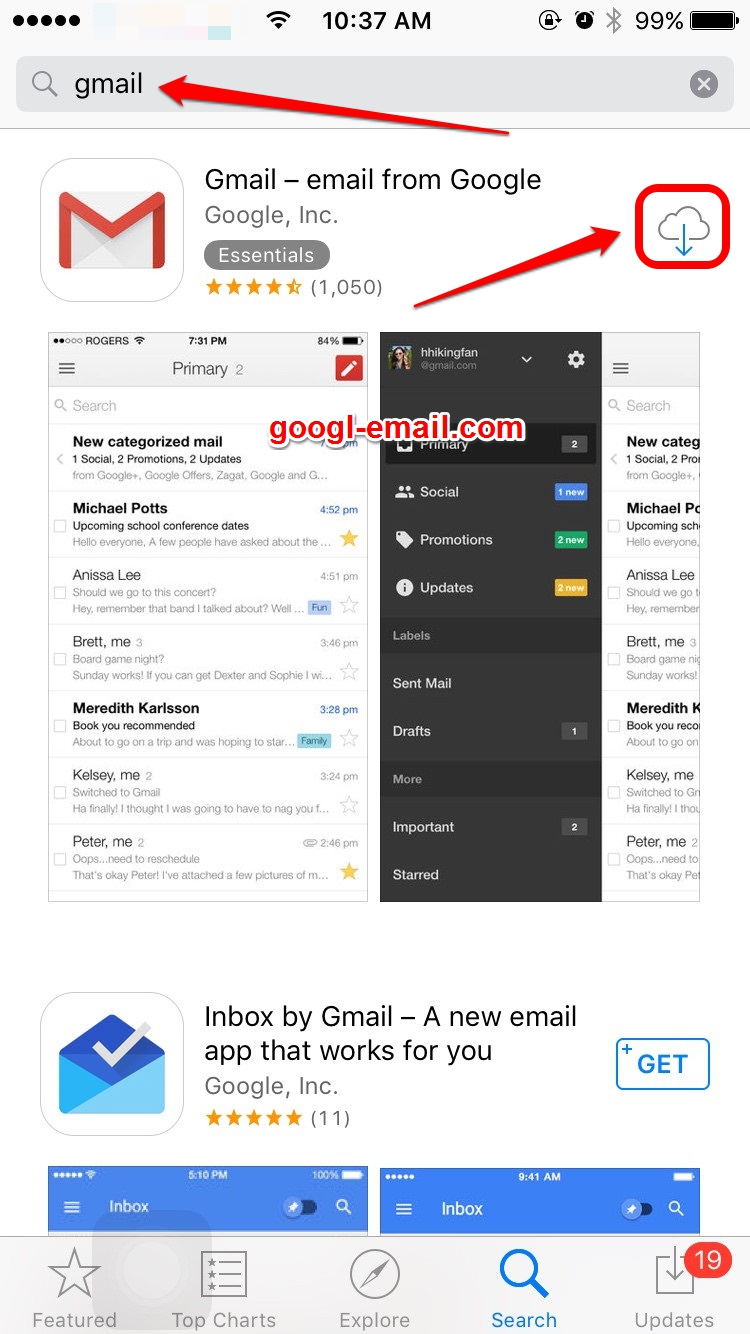
STEP 1 : Open the App Store on your iPhone or iPad. You can install the Gmail app for free on your iOS device by using the App store.

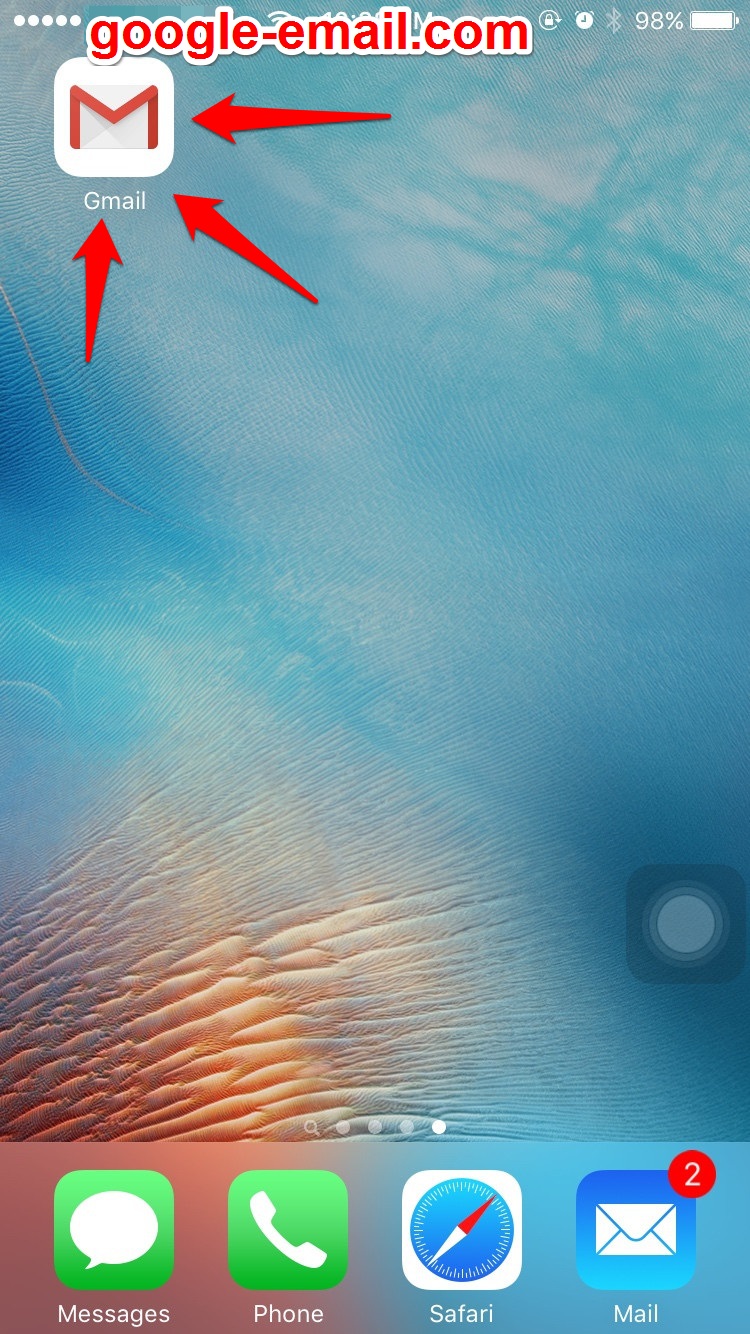
STEP 2 : Tap the Gmail app on the home screen to launch Gmail.

STEP 3 : Enter your Gmail username and password to sign in.

Once your password is registered, you’ll have the opportunity to view a short tour of the Gmail app. If you want the tour, tap “Start Tour.”

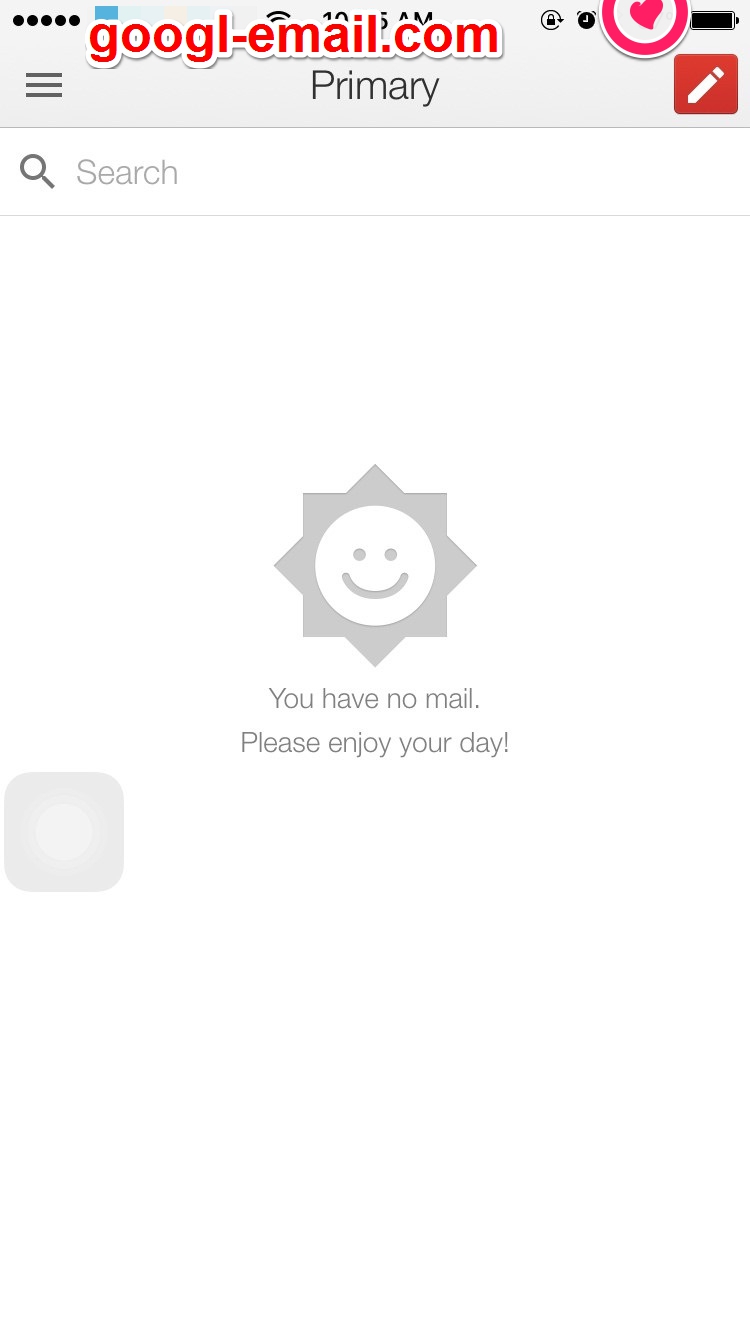
STEP 4 : Tap “Go to inbox” to view your inbox. You now have access to your Gmail account on your iOS device.

Built-In iOS Mail

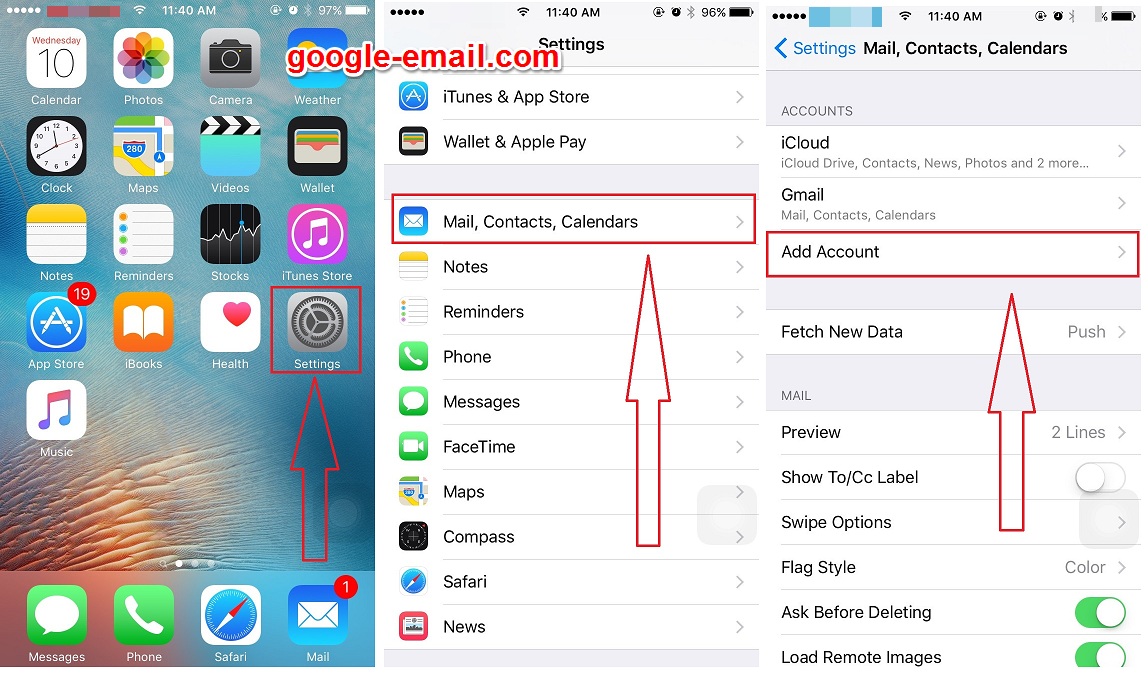
If you want to add your Google account to your iPhone or iPad’s system apps, you’ll want to go to Settings > Mail, Calendar, Contacts.

Under the hood, Apple is using the open standard IMAP, CalDAV, and CardDAV services to handle syncing Google services; unfortunately, Gmail retro-fitted support for IMAP, and it can be quirky at times—especially if you like Gmail’s labeling system.

If you want to use the built-in iOS Mail app and its unified inbox, however, and you don’t have a paid account, it’s your only option.

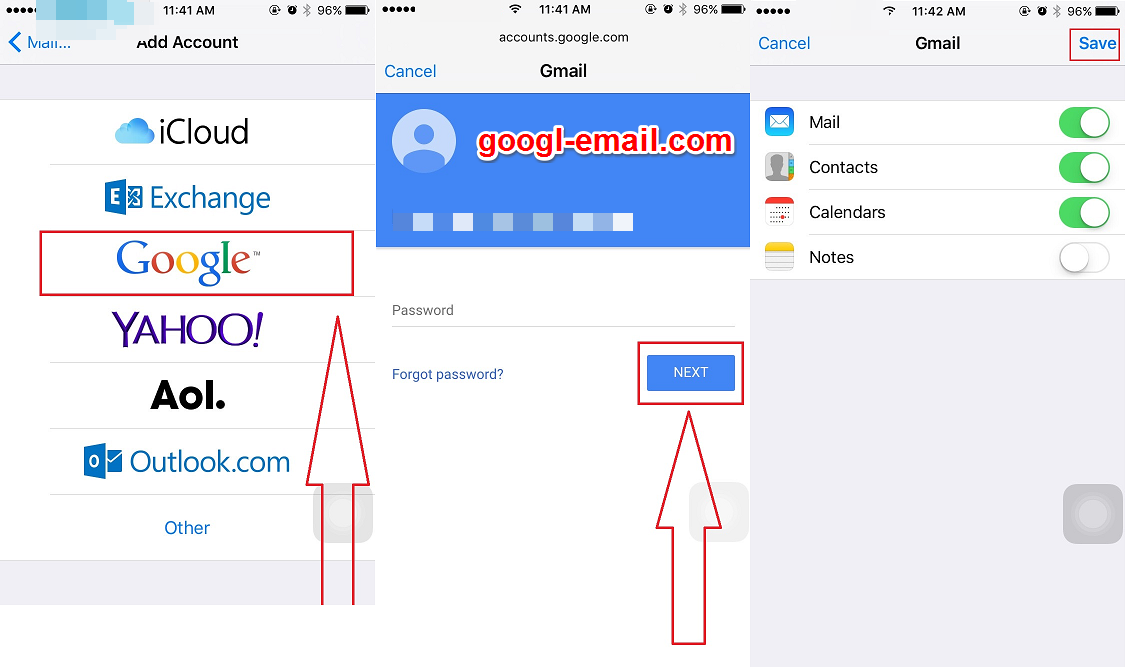
  1. Launch the Settings app from your Home screen.
  2. Tap on Mail, Contacts, Calendars
  3. Tap on Add Account.
  4. Tap on Gmail.
  5. Enter your login information for your Google account.
  6. Tap on Allow when prompted with the “iOS would like to…” screen.
  7. Tap on the Gmail button.
  8. Under the account heading you can choose which services you’d like to sync: Mail, Contacts, Calendars, or Notes by moving the corresponding slider to the right.
  9. Tap on Save.


Sign in to Gmail – Gmail Android App

If your Android already has Gmail app, login will be quick and easy.

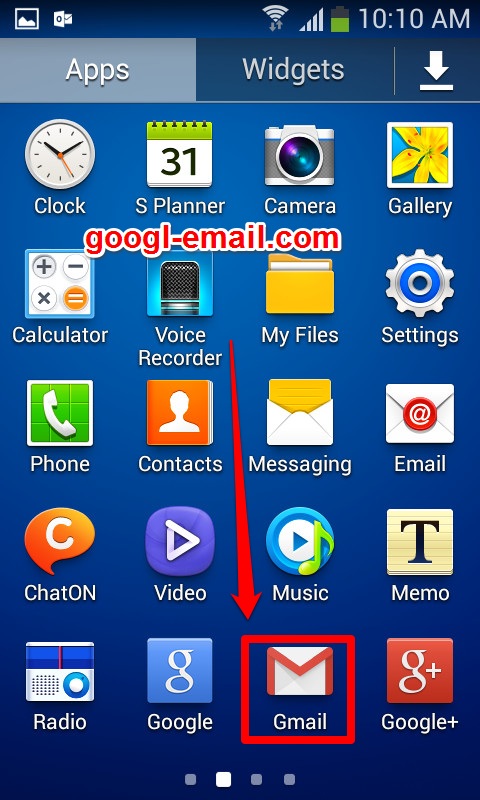
STEP 1: Tap the “Gmail” icon to launch Gmail.

    • If the Google account associated with your Android is the one used for Gmail, you could launch the app and reach your inbox without any further actions.
    • To add a Gmail address that isn’t yet on your phone, apply the similar procedure.

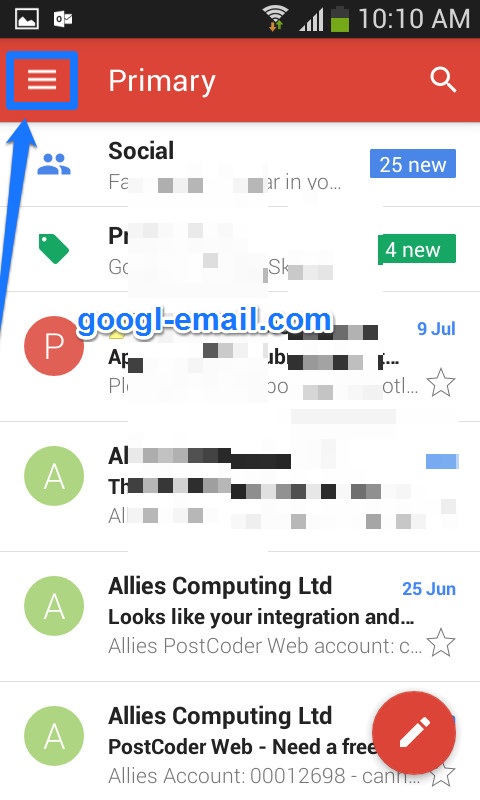
STEP 2: Open the ≡ menu, then select “Settings”.

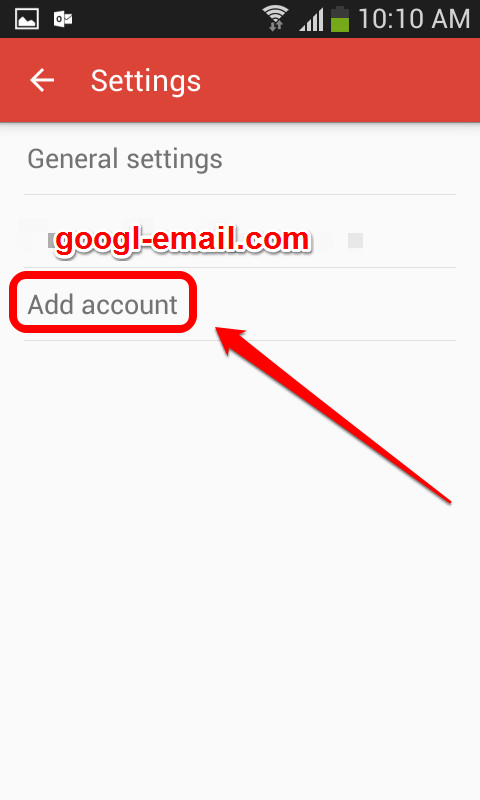
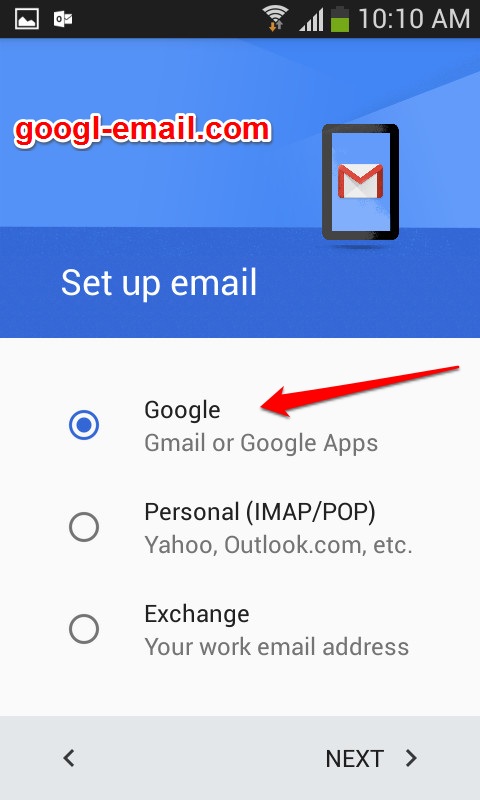
STEP 3: Tap “Add Account”. The “Set up email” screen will appear.

STEP 4 :  Select “Google” and then tap “Next”.

STEP 5: Enter your gmail username,password and then tap “Next”.

You’ll notice a “Forgot password” link right under the password blank. If you don’t remember your password, tap that link and follow its prompts.


Gmail Sign In

Sign in to Gmail is a pretty simple process that offers access not only to gmail inbox, but also to other processes such as Youtube , Google+ and Google Play . Having some problems in gmail.com login,see simple tutorial on how to log into Gmail

The first thing you must do to Login Gmail

To enter www.gmail.com you must first create gmail account. If you don’t have any email account read our article on how to create an email account Gmail.

Sign in to Gmail from your computer

  1. To  Sign In Gmail , go to the login page gmail entering www.gmail.com in your browser.
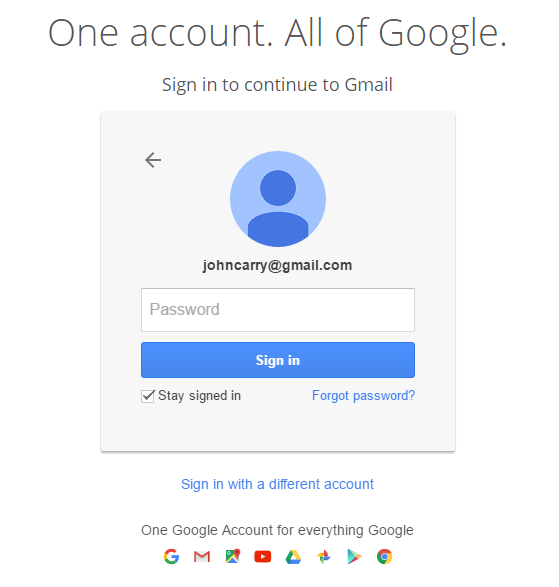
  2. Enter  your email. (Eg johncarry@gmail.com ) No need to enter your email address whole, you can skip @ gmail.com.  (Eg johncarry )
  3. Enter your password. Remember that your password must contain at least 8 characters. be careful when using the correct capitalization.
  4. To facilitate the process in the future select the “box Stay Signed In “.
  5. Click the “Sign In” button. In a few seconds you will be redirected to your inbox.

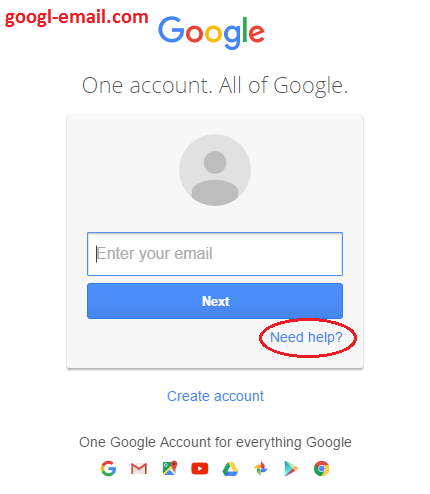
If you have any problems when accessing your account click on the link “Need Help? “.  Google will offer several options to recover your password, username or help to deal with other problems.

How www.Gmail.com Login with image

Listed above are the best features of gmail, there is much more. It’s time to try. Let the gmail login start, just follow the easy steps illustrated With the image.


  1. Open the browser Google Chrome or any browser


  2. Type “www.gmail.com” or “mail.google.com” here.

  3. Click on the “Login”

  4. Enter your ID email here
  5. Click the button NEXT to enter the password
  6. Enter your password here.

  7. Click on Login button.

It has been completed. If your credential data (email id and password ) are correct, now you could be able to check your inbox Gmail for new mail.

How To Recover Your Gmail Password?

If you forget your password Gmail, Google offers several options to recover. If you have assigned a phone number or alternate email address to your account, Google can quickly reset the password. If you do not have any alternate mail, Google can try to verify your identity and reclaim your account; for your password in this way it is important that you have a cell phone. Besides this there are 2 things you can do to recover or never forget Gmail password.

Way 1 :

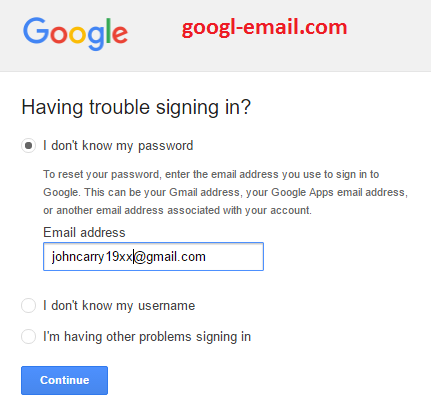
Go to Google’s Account Recovery page and select “I don’t know my password” . Then enter your Gmail email address and click on Continue:


If you’ve previously linked your phone number to your account, you can use it to retrieve a verification code by SMS, or you can click on Verify your identity and answer to the security questions.

Note:

If it is the most recent password, you should be able to use it for login. If a password is older, you can use it to help recover it.


You can use other ways to stop trying to recover that important password.

N.B. If you have not accessed your account for 30 days or more, Gmail may have considered your account as abandoned and may have deleted it from the server. In this case, account recovery is impossible.

Way 2 : Use WebBrowserPassView

This program will scan your web browsers to store login information. You may be able to recover the password in this way. Some security software programs may consider Web Browser Pass View malicious, because when recovering passwords stored in the system, your antivirus programs my inform which one is infected with a Trojan or virus. Be aware that this DDE application can cause hoaxes, so no problem, you can run the program. There is no need to install WebBrowserPassView. As soon as you run the program,it will scan all your installed browsers and save your usernames and passwords on the websites you visited.

Non AMP Version
@ 2026 googlemailguide.com. This is not an official site, we are only helping with our tutorials to access mail servers. We are not affiliated with or sponsored by Google Inc.
googlemailguide.com
Gmail Email : Get started ! - Google Mail
  • Home
  • About
  • Contact Us
  • Privacy Policy
  • Terms
Exit mobile version