You can create an email signature as text ( contact information, favorite quotes , about yourself,…). The gmail signature is automatically added to the bottom of every outgoing email message.

Setup an email signature on Gmail desktop.

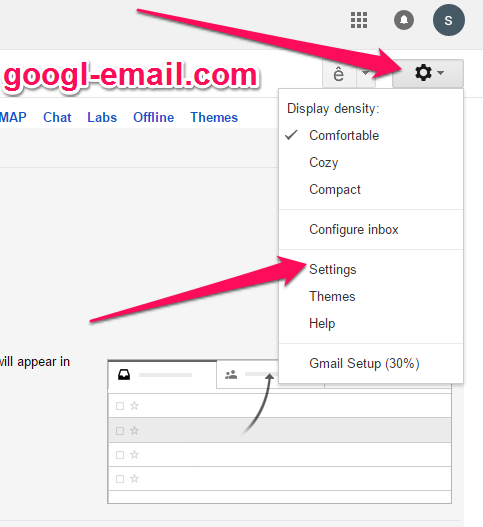
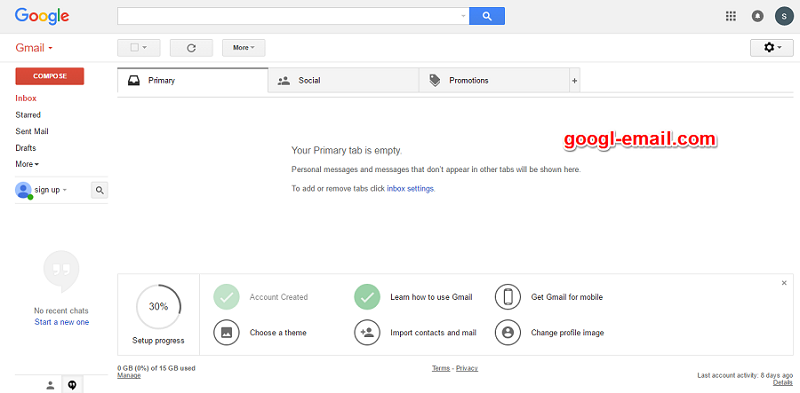
STEP 1 : Sign into gmail account and go to `Gmail Settings` ⇒ Click `Settings`  in the top right , or go to gmail settings page : https://mail.google.com/mail/u/0/#settings/

STEP 2 : In `General` tab, scroll down to look for `Signature` section.

STEP 3 : Enter your signature to the editor box. You can format text by changing style, adding image or put hyperlink in signature.
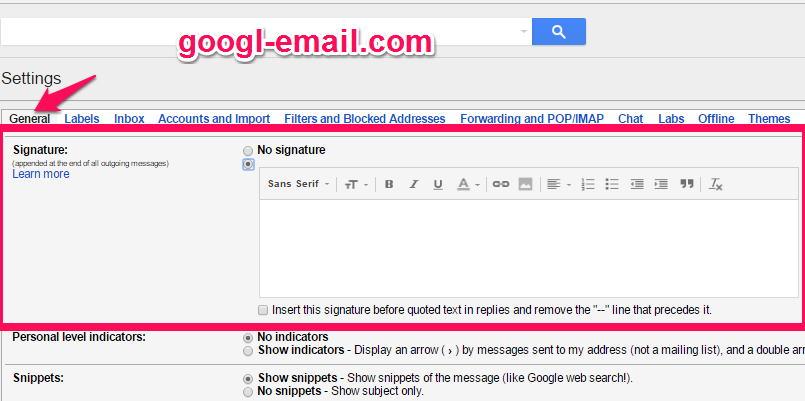
STEP 4 : Click `Save Changes`.

NOTE : If you want to remove the email signature feature, just click `No signature` and `Save settings` .

Setup an email signature on gmail app.

The signature you created in the Gmail app will be present in any messages sent from the app. We will show you how to setup an email signature on iPhone. This tutorial is working same on iPad and android devices.

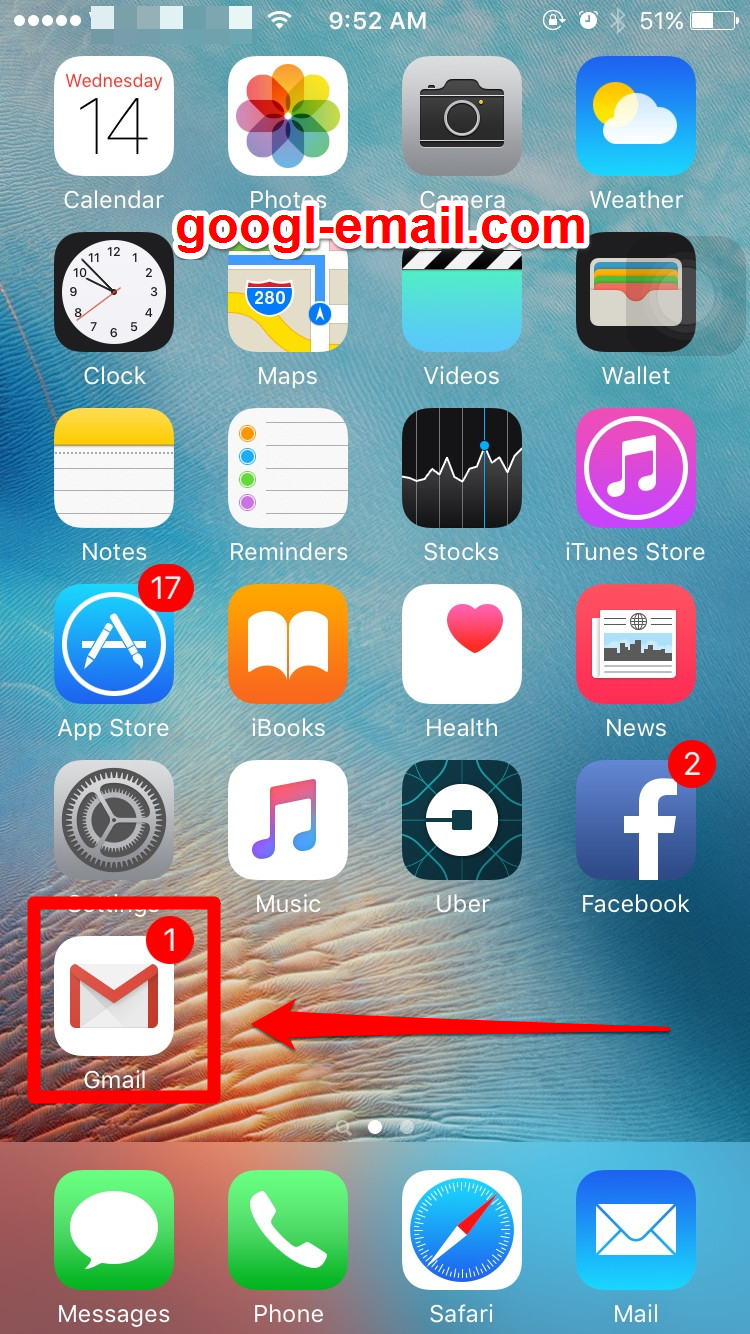
STEP 1 : Launch `Gmail` app and Login into your gmail account.
 

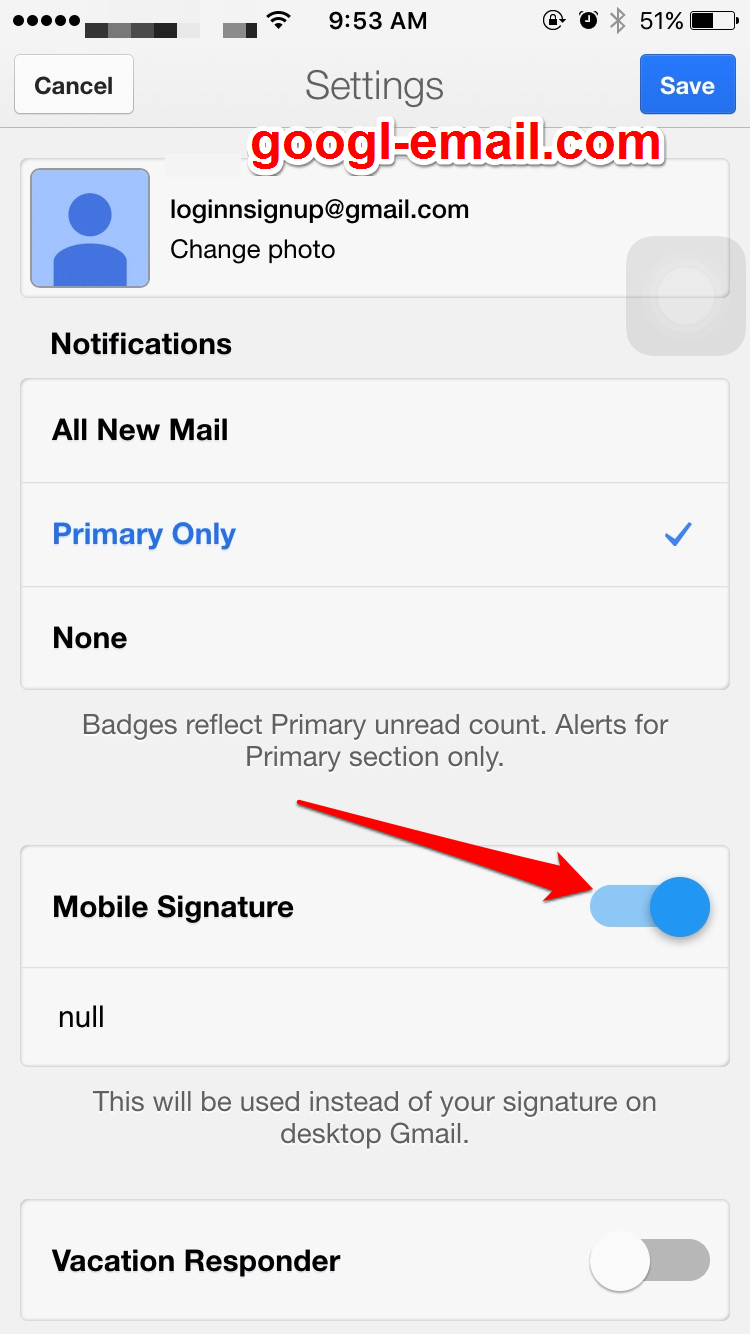
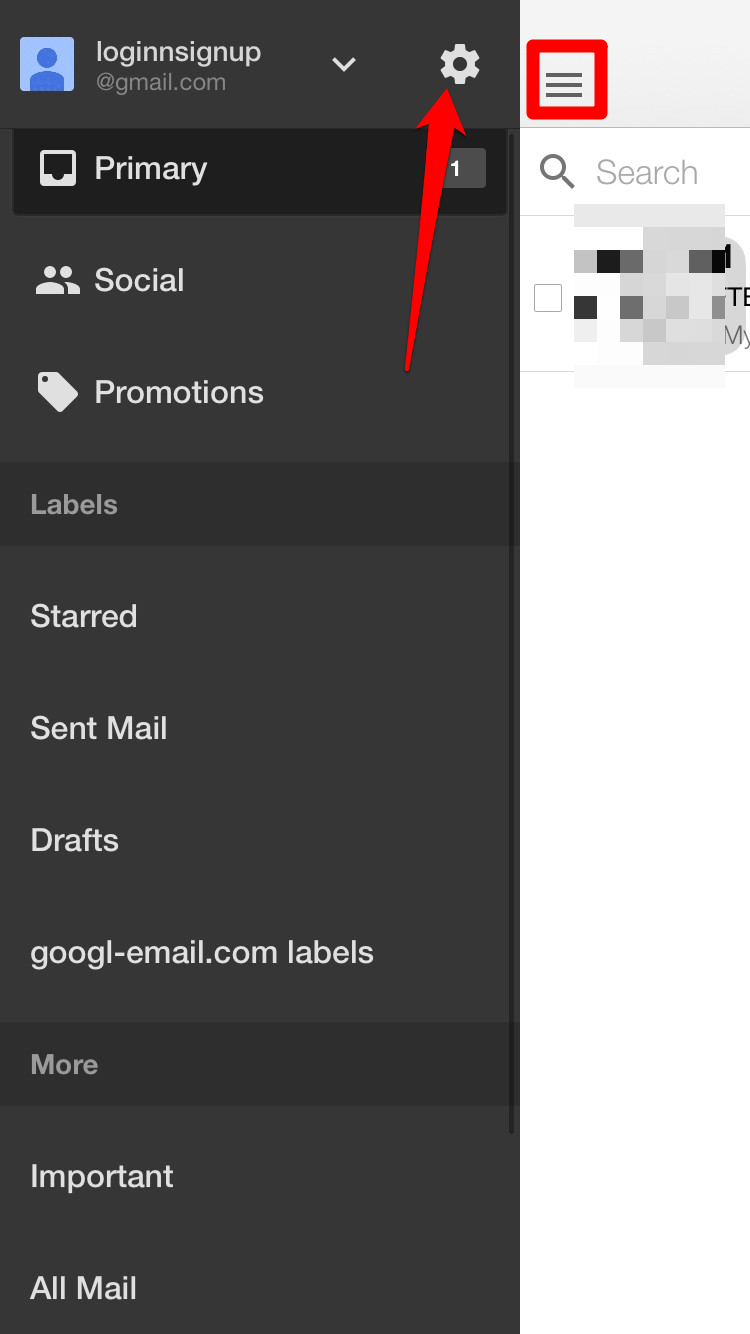
STEP 2 : Tap to `Settings`  in top left menu.
 

STEP 3 : Enable `Mobile Signature`


STEP 4 : Type your mobile signature (This will be used instead of your signature on desktop Gmail).
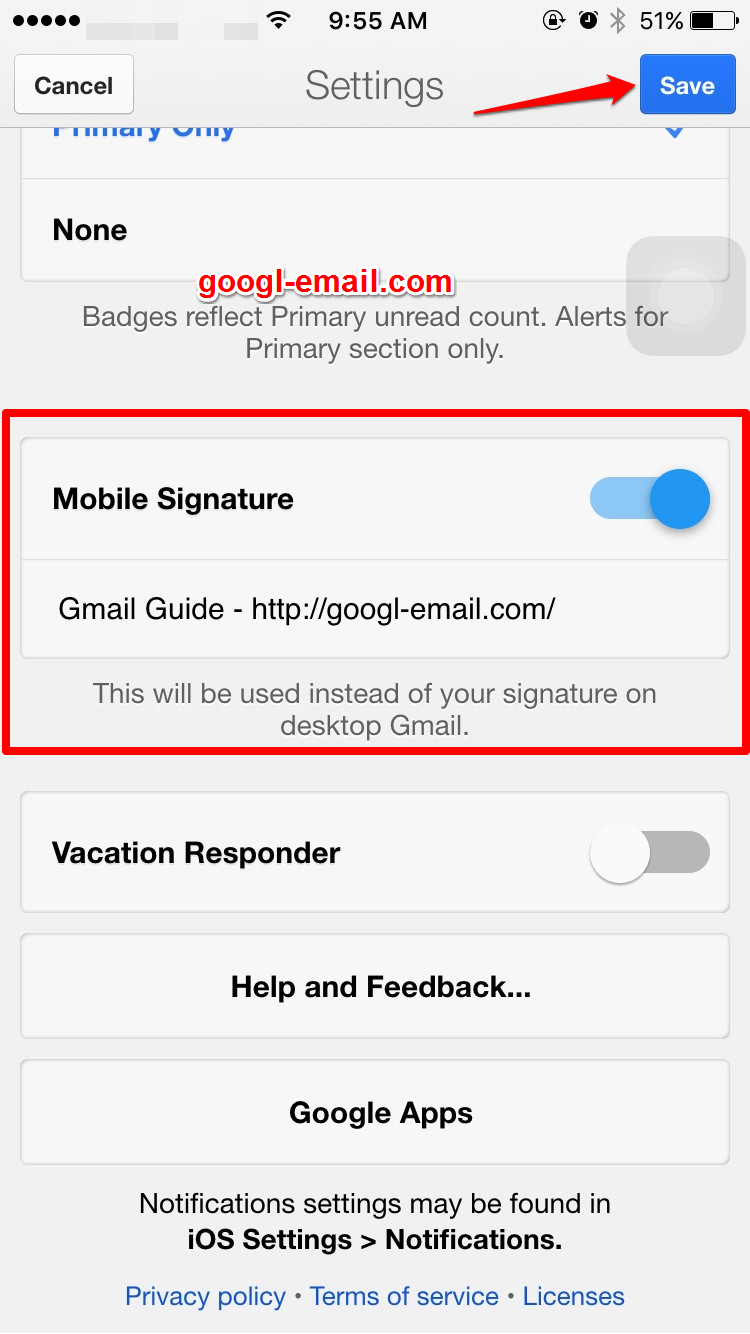
 

STEP 5 : Tap `Save` to complete setup gmail mobile signature.

  1. First of all, you toned to create an account and log into gmail.com.  (Here are tutorials for create gmail account or gmail sign in ). After logged in, your  inbox will be presented.
  2. Check out the categories in your inbox.The Gmail interface is consisted of “tabs”, which devideds inbox into specific categories. There are  the primary tab, the social tab and the promotions tab (not including custom ones you might create yourself). Learn more: Organize your emails with tabs
  3. Choose a theme for your inbox
    Check out our guide on how change your Gmail inbox theme, pick a custom theme shared by others, or share your own theme. Learn more : How to change your Gmail background theme
  4. Find your emails. With efficient searching engines, Gmail lets you find emails precisely and fast.
  5. Organize your emails with labels. Gmail users may be confused by the labeling feature it provides. Labeling does not function as a a folder, even though sometimes it could be used as a folder. Because you can attach multiple labels in a single conversation, you have far more options. Learn more: Organize your emails with labels
  6. Open & download attachments. In my e-mail inbox there are documents and photos from my friends. How to open/download them using in gmail?
  7. Undo sending a message. The Undo feature is heading out of the Labs (Google’s opt-in, add-on, experimental features for Gmail) and will be an option for all Gmail users (via Web, at least).
  8. Manage incoming emails. Filter your inbox emails like automatically label by creating rules.
  9. Making a video call. Making a video call on GMail and Google +. You can video call with them from your inbox account by hovering over their name and clicking Video call
  10. Sign in to multiple accounts at once. If you use multiple accounts, you can check all your emails in Gmail. Just adding multiple accounts to Gmail. Learn more : Sign in to multiple accounts at once